Navigation: Database Settings >


In PHDwin, the units for each product or value are set in the Conventions window. Each Convention has a set of products that are associated with their own units. For example, one Convention that are oilfield units (Imperial) and one that is in SI units. PHDwin allows users to have multiple Conventions set up and choose the one used for reporting.
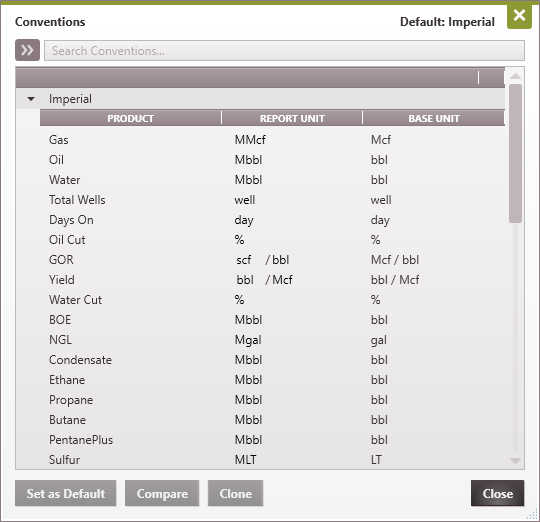
There are four (4) unit conventions available with PHDwin. Users are able to create additional unit conventions as desired, but these four conventions come pre-loaded with PHDwin. They are: 1.Imperial: This convention is based on the imperial system of measurement. In this convention, NGL base unit is defined in gallons and report unit is in Mgal. In general, report units are in thousands of base unit. 2.Imperial NGL Mbbl: This is a modification of the Imperial convention for users who prefer to have NGL unit in bbl. NGL base unit is bbl, while the report unit is in Mbbl. 3.Imperial Small NGL bbl: For smaller assets based on volume produced, this convention reports volume in the base unit rather than in thousands of base unit. NGL base and report units are in bbl. 4.SI: This convention is based on the International System of Units (SI system) which governs the metric system of measurement.
To view the available unit conventions, go to the Database Settings Ribbon and click on Conventions.
To create, edit, or change the default convention, you need to be in Edit (or single-user) mode. |
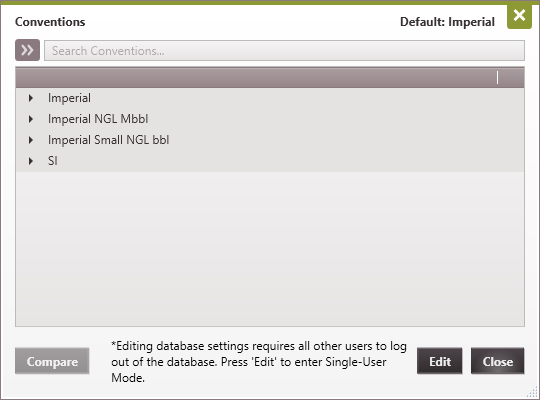
 Where Can I View the Unit Conventions?
Go to the Database Settings Ribbon and click on Conventions and click Edit to enter Edit Mode.
To Set the Default Convention Highlight the name of the desired Convention and click Set as default. To Clone a Default Convention to Make Edits to the Units The only way to make a new Convention is to copy/clone an existing one. 1.Highlight the name of the desired convention to copy it. 2.Click on Clone. 3.Double-click on the name of the convention to re-name it. 4.Go through each product and use the drop-downs to select the proper units as desired. 5.Select Close to save the new convention. To Compare the Units for Two Conventions 1.Highlight the name of two conventions by clicking on one, holding down the Ctrl or Shift Key and clicking on the another. 2.Click on the Compare button. This opens up the conventions side by side. The product names appears bold if the units are different. 3.Change any units as desired and click End Comparison. To Delete a Unit Convention 1.Highlight the name of the convention. 2.Click Delete. The Imperial and SI unit conventions cannot be deleted as they are the default conventions. |
Related Items: