Navigation: Special Case Types > Group Cases >


Normalized Curve group cases gather production volumes from the child cases and bring the relative start of production or peak date to a common starting point in time. From that set starting point, a Normalized Curve will "normalize" the data by taking the average volume each month and plotting it on one graph. A Normalized Curve is useful for determining the production possibilities for drilling prospects. If there are existing wells in a certain field and the company is evaluating the possibility of drilling an additional well in the same field, creating a Normalized Curve is useful to estimate the future potential of the prospective well.
You can create a Normalized Curve case to gather historical and/or projected volumes from a group of cases and calculate the monthly average to be plotted on the graph. Normalized Curve are similar to Summary Plot cases because they both use volumes from the child cases to create a curve. However, unlike Summary Plot, the normalized curves displays the average volume for each product, rather than the sum.

The Normalized Curve is created by: 1.Normalizing the case's monthly production as if each case began producing on the same day - Jan 1, 1900 (time zero). 2.Adding the production for each child case every month and normalizing it by either the number of wells that were contributing to the production each month, the lateral lengths, or the proppant mass used in each case. The Normalized Curve is displayed as a standard case on the case list. Normalized Curve cases are only intended to graphically show the average volumes for the child cases selected, they are not meant to have prices or run economics. To do this, fit a curve through the data and use the normalized curve as a template to create a new standard case. If changes are made to the production on any of the child cases, recompile the Normalized Curve case to show the new volumes. When new cases are added to the database and they need to be a part of the Normalized Curve case, edit the Normalized Curve case and add the new cases in the Case Settings form. When this is done, recompile the Normalized Curve case to update it with the new cases. While creating the Normalized Curve, users are required to specify the date at which to gather volumes. The available options are: End of production (EOP), EUR. The EOP and EUR refer to that of each individual case. Because not all cases will have the same EOP or EUR date, the cases that have earlier dates will not be contributing to the Norm Curve after their respective cutoff dates. By default, this case is set to be excluded from reports so that the volumes added are not shown on the grand total report page. |
 To Create a New Normalized Curve
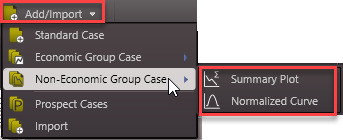
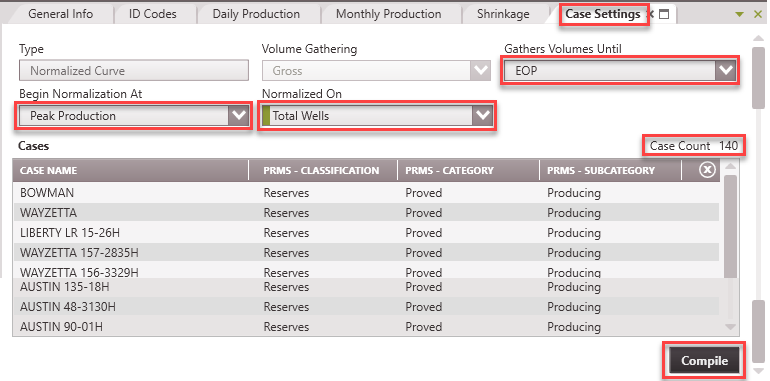
1.Go to the Home Ribbon and click the Add/Import button in the top left corner, select Non-Economic Group Case and select Normalized Curve. If needed, rename it in the General Info tab to something that relates to the child cases used for grouping. 2.Go to the Forms list and double-click on Case Settings Form if it's not already in the view. 3.Adjusts the settings - •Type - Normalized Curve •Volume Gathering - a normalized curve always gathers gross volumes •Gather Gross Volumes Until - Use this to specify whether to gather only historical data or all data, including projections: oDo not gather - this option is not applicable to this case, it does not gather any volumes at all. oEnd of Production (EOP) - this option gathers all Production volumes up to the EOP. oEUR - this option ignores the calculated economic limit and gathers all historical and projected volumes for each case. •Begin Normalization At - Specify the time of production of each child case at which to begin gathering volumes: oStart of Production - this option takes the average production starting from the beginning of production for each child case and plot the average from time zero on the graph. Production for each case is averaged beginning at the start of production of the major phase. oPeak Production - this option takes the average production start from the peak (maximum) production for each child case and plot the average from time zero on the graph. Production for each case is averaged beginning on the month of the highest rate of production of the major phase divided by the number of active wells. This option is beneficial for cases that have different times of peak production. Some cases start with their highest production at the beginning and decline from there, while some cases start producing slowly and increase until they hit their peak rate, and decline from there. When the normalization begins at the peak of production for both cases, a more accurate representation of the average production of the two cases is achieved.
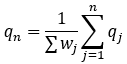
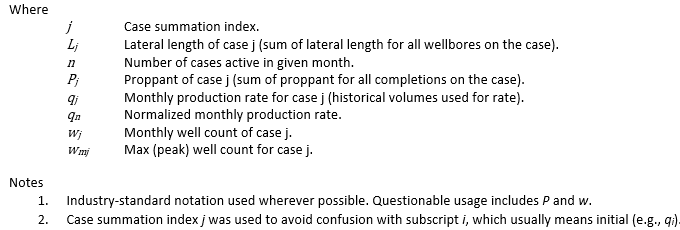
•Normalized On - This is where the normalization basis is specified. Normalization can be done based on the Total Wells, Lateral Length, and Proppant Mass: oTotal Wells - select this option to calculate the average production by dividing the sum of the production of all the child cases by the sum of the well counts of all the child cases.
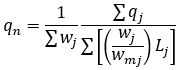
oLateral Length - select this option to calculate the average production by dividing the sum of the production from each child case with the sum of the lateral lengths (in ft or m) for each child case, then dividing by the total well count. This means that every child case must have a value entered in the Lateral Length field of their wellbore completion form. If the wellbore completion form is missing the Lateral Length data, a value of 1 is assumed. In the formula below, qn is in volume/time/well/1000 ft(or m).
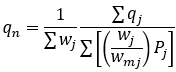
oProppant - select this option to calculate the average production by dividing each child cases' production by their respective proppant mass (in lbs or kg), taking the sum of all those values, then dividing by the total well count. This means that every child case must have a value entered in the Frac Proppant field of their wellbore completion form. If the wellbore completion form is missing the Frac Proppant mass data, a value of 1 is assumed. In the formula below, qn is in volume/time/well/1000 lbs(or kg).
4.Add the child cases - Open the case list and drag and drop the cases that should be part of this normalized group case into the 'Cases' section of the case settings form. Use Shift + Click or Ctrl + Click to select multiple cases. If cases are grouped together by a common field using the sort order, drag the group from the case list into this window. 5.Click Compile - The normalized volumes will be displayed on the graph and tracked in the Monthly History form for this case.
|
|
Child Cases with Different Production Spans
The child cases that are part of the Normalized Curve most likely do not have the same length of production data. Therefore, at a given number of years after time zero, the norm curve will only take the average of those child cases that are still producing. For example, Case 1 produces for 16 years and Case 2 produces for 30 years and volumes are gathered until the End of Production (EOP). The norm curve will take the average of the two cases up until 16 years after time zero. The rest of the graph will plot the remaining 14 years of Case 2's production. |
To Edit the Settings or Recompile
1.Find the Norm Curve case on the case list and double-click to make it active. 2.Go to the Forms list and double-click on Case Settings if it's not already in the view. 3.Adjust any settings, including the case selection. 4.Click Compile to save the changes and recompile the volumes. Compiling gathers updated volumes on the child cases to generate an updated average curve. |