Navigation: Special Case Types > Group Cases >


A Summary Plot is a type of group case that is used to sum together the production volumes of any combination of cases desired. You can choose to sum the historical production values and/or forecasted production volumes, depending on the gathering volumes specified and the preference set in the phase configuration of the child cases. The summary plot prints a graph that displays the monthly production sums of all the child cases. This graph could be useful for looking at the total production for a certain field or reservoir. It could also be used to view the total production of all the wells in the database for company reporting purposes.
While the summary plot displays production volumes, it does not affect the economics of the group case. Users cannot run any economics on summary plots -- the plots are simply for reporting production. In order to run economics on a summary plot output, create the appropriate group case type that satisfies specific needs for applying economics. This could be a Projection Unit or an Aggregate Unit.

There are two different types of summary plot cases: •Simple Summary Plot - takes the production volumes and adds them up and plots a summary line for each product. •Stacked Plot - the stacked sum plot sums all production volumes together and separates the production volumes by Class (Reserves, Contingent, Prospective), Category (proved, probable, possible), or subcategory (Producing, Behind Pipe, Undeveloped, Shut-In etc.). This allows users to graphically visualize the relative production volumes for different reserve categories. The stacked plot is not a separate type of group case, however; it must be manually created using the steps described in the section below. When changes are made to the production on any of the child cases, recompile the summary plot case to show the updated volumes. When new cases are added to the database and they need to be a part of the summary plot case, edit the summary plot case and add the new cases in the Case Settings form. When this is done, recompile the summary plot case to update it with the new cases. While creating a Summary Plot, users are required to specify the date at which to gather volumes. The available options are: End of production (EOP), Economic Limit (ECL), or EUR. The EOP, ECL, and EUR refer to that of each child case. Because all cases do not have the same EOP, ECL, or EUR date, the cases with earlier dates will not contribute to the sum plot after their respective cutoff dates. By default, a summary plot case is set to be excluded from reports so that the volumes are not added into a summary page such as the grand total report page. |

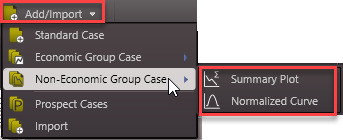
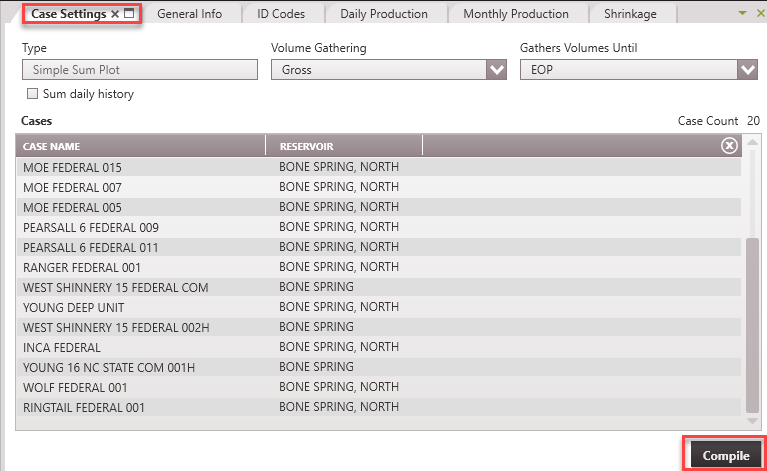
1.Go to the Home Ribbon and click the Add/Import button in the top left corner, select Non-Economic Group Case and select Summary Plot. If needed, rename it in the General Info tab to something that relates to the child cases used for grouping. 2.Go to the Forms list and double-click on Case Settings to open it or drag it to an available space to add to the current view if it's not already visible. 3.Adjusts the settings to build the summary plot case •Type - Simple Sum Plot •Volume Gathering - Choose whether to gather gross or net production volumes from the child cases. Net volumes will be calculated from the Revenue Interest Share of Ownership specified for each case. •Gather Volumes Until - Use this to specify whether to gather only historical data or all data, including projections: oDo not gather Volumes - this option is not applicable to this case, it does not gather any volumes at all. oEnd of Production (EOP) - this option gathers all Production volumes up to the EOP. oEconomic Limit (ECL) - this option will gather volumes up until the calculated economic limit on each case (historical or historical & projected) oEUR - this option ignores the calculated economic limit and gathers all historical and projected volumes for each case o A few things to be aware of for child cases: §If projections have been applied in a given case such that it goes beyond the start of historical production, the forecast portion is also gathered. §If the precedence setting in the Phase configuration is set to Forecast, forecasted volumes are gathered when there is overlap with historical data. Changing the Precedence on the Sum Plot case does not affect how volumes are gathered. •Sum daily history - If selected, this option aggregates the daily production data from the child cases. Daily history records are to be summed over the entire daily history of each child case without regard for the Gather Volume Until setting on the group. 4.Add the child cases - Open the case list and drag and drop the cases that should be part of this summary plot into the 'Cases' section of the case settings form. Use Shift + Click or Ctrl + Click to select multiple cases. If cases are grouped together by a common field using the sort order, drag the group from the case list into this window. 5.Click Compile - The monthly summed volumes will be displayed on the graph and tracked in the Monthly History form for this case.
|
A Stacked Plot is a type of summary plot that separates the sum of production by reserve categories. Any combination of Classifications, Categories, and Subcategories can be selected and displayed on the graph. The stacked plot allows for easy visualization of the distribution of production within each of the reserve categories and make decisions from there. For example, if the production sum in a given field is high but a stacked plot reveals that most of the production come from Probable Non-Producing Reserves, this would suggest that the production is not as high as previously thought.
To create a stacked plot, the cases must be linked in the Incrementals Form. There is no default function in PHDwin to create a stacked plot; this must be done manually.
1.First, create a Summary Plot for each combination of classification, category, and subcategory cases that needs to be plotted (Ex. Create one summary plot for all the Proved Producing cases, one for all the Proved Non-Producing cases, etc.) If needed, sort the case list by the category and subcategory by applying a Sort or Filter in the home ribbon to make the process easier. 2.On the forms flyout, open up the Incrementals Form if it is not already open. 3.Drag all of the Summary Plot Cases to be included in the stacked plot into the Incrementals Form. 4.Designate one of the Summary Plots as the Parent case and the other cases as the Child cases by dragging and dropping them on top of any one case. It does not matter which case is selected as the parent case, as long as all the summary plots are linked this way. 5.Click Save 6.Go to the Case List and open the summary plot that was listed as the Last Child Case on the Incrementals Form. 7.Open the graph and to display the Sum Plot for the last child case. 8.Double - click on the graph to open the Graph Properties Window. 9.Click on the Related Cases tab and check Enable Related Cases. This is where all the summary plots that are linked will be shown. Enabling related cases creates the stacked plot. 10.Click Apply & Close to see the stacked plot on the updated graph. |

It is not necessary to create a new summary plot case to adjust the settings or change the cases that are included in it. All that is required is to edit the case properties. 1.Find the Sum Plot case on the case list and double-click to make it active. 2.Go to the Forms flyout and double-click on Case Settings if it's not already in the view. 3.Adjust any settings, including the case selection. 4.Click Compile on the bottom of the form to recompile the volumes and see the update made. |