Navigation: Running Reports > Default Reports >


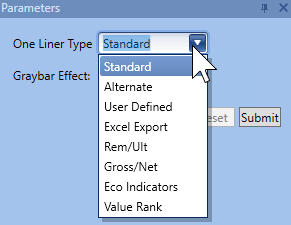
The One liner report is a short summary of production and economics of each case. There are several different types of One Liners, but they all essentially calculate reserves, revenue, costs, and cash flows. The one liner report does not display the Present Worth Profile or Economic Indicators (unless the eco indicators one liner type is selected). Use the drop-down menu under Parameters to make selection of the type of one liner to display.
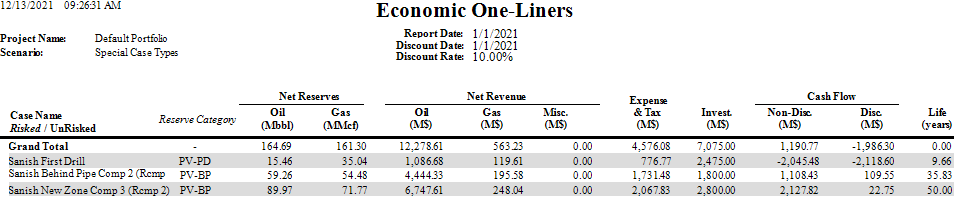
•Standard - this type of one liner reports Cumulative Net Reserves, Net Revenue, Expenses and Investments, Cash Flows, and Economic Life on one line per case.
•Alternate - the only difference between the Standard and the Alternate one liner is that Condensate and NGL are combined with Oil in the Reserves and Revenue columns assuming that all three products have the same unit.
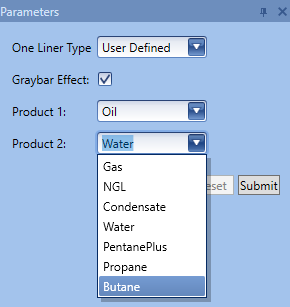
•User Defined - the user defined One Liner allows the user to select which two products to display Net Reserves and Net Revenue values for.
•Excel Export - the Excel Export One Liner is made to be copied and pasted into Excel. It displays Cumulative data of Gross and Net production, Economic Indicators, Cash Flows, and Case Life for each case. Select the data, copy and paste into Excel if needed for further analysis.

•Rem/Ult - the Rem/Ult One Liner utilizes the equation Cumulative Volumes + Remaining Reserves = Ultimate Reserves. The Cumulative Volumes represent the Total Production from the Start of Production (SOP) to the report date. The remaining reserves represents the total remaining production from the report date to the ECL date.
•Gross/Net - the Gross/Net One Liner simply adds an additional column for Gross Reserves onto the report.
•Eco Indicators - The Eco Indicators One Liner displays Economic Indicators such as ROI, Years to Payout, Internal ROR, Cash flow, and Economic Life for each case.
•Value Rank - the Value Rank One Liner ranks all the selected cases by Discounted Net Value. Selection the option to group cases by Class, Class and Category, or not grouped at all.