Navigation: »No topics above this level«


A PHDwin database is a self-contained entity that holds all the cases being evaluated along with the properties of the cases, associated economic inputs, graphs, report settings and other unique settings specific to that database. Traditionally, a database resides in database management system (DBMS) that manages and organizes its data in a structured manner. For PHDwin, that DBMS is the Microsoft SQL Server. MS SQL Server allows users to create, modify, and query a PHDwin database through the PHDwin GUI. It also allows users to manage the security and access controls for the databases through the MS SQL Server Management Studio (SSMS). See the Installation section for more. An installation of SQL Server is called an instance.
Often, users want to save a copy of their database on a specified physical or network drive, whether to archive it, send it to someone else, or move it to a different instance of SQL Server. This is where transfer (.phz3) files come in handy . A transfer file is a compressed copy of a PHDwin database that can be used to create a new copy of the database in a SQL Server instance without the need to utilize SSMS.
To reiterate, File Transfer is the process of creating or opening a .phz3 file. As a result, there are two distinct processes involved in file transfer: Transfer Out of and Transfer In to a SQL Server instance. To save a copy of your database, you need to transfer it out of the instance it currently lives in. The file transfer out process creates the .phz3 file. The transfer out does not completely move the database out of the instance, it only packages and zips a copy of the database and saves it. On the other hand, if you receive a copy of PHDwin V3 database, you need to transfer it into an instance of SQL Server to open it and access its content. This process creates a new database in the instance and does not overwrite any existing database in that instance. Essentially, to create a zipped .phz3 file of your database, use the Transfer Out feature. To open or unzip a .phz3 file and create a new database in your SQL Server instance that you are currently logged in to, use the Transfer In feature.
A password protection feature has been added to transfer files in version 3.1.16+ to protect users from unauthorized access to their data. This is an optional feature. If a user chooses to encrypt their database with a password when creating the transfer file, that password must be provided for anyone to decrypt the file to access its content. We recommend you note your password. If it's forgotten, it cannot be recovered. If no password was added to create the transfer file, none will be required to access the database.
 How Do I Transfer Out a Zipped .phz3 File?
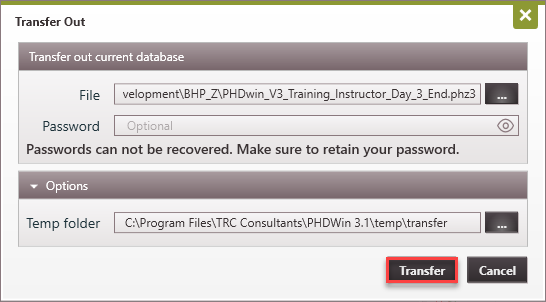
1.Go to the Home Ribbon, and in the Tools section click on Transfer Out. 2.Browse the File path to save the transfer file. Rename the file if desired. 3.Enter a Password to encrypt your database. This is optional. This password would be needed for anyone to open the database. Write down the password. If you forget the password, it cannot be recovered. 4.Under Options, select a Temp folder. A temp folder allows you to change the PHDwin Temp Folder location, which is used for temporary application data. By default the Temp Folder is located in the same drive as your program files location. However, in very rare cases you may encounter insufficient space in that drive, so you may decide to point the Temp Folder to a separate drive location with additional space. 5.Click Transfer to create the file. The file name and location will be listed in the selected Folder.
|
How Do I Transfer In a .phz3 File to Create a New Database?
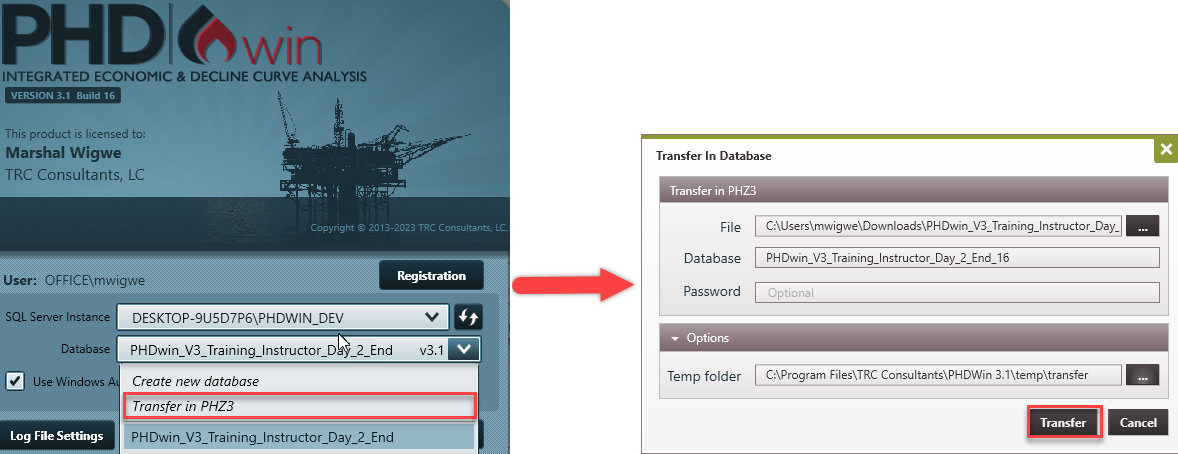
When you have a .phz3 file and want to access its contents, the only way to open it and access the content is via file transfer. Opening a transfer file creates a new database in the selected instance of MS SQL Server. You cannot immediately merge a .phz3 file into an existing database, but you can use the merge feature once you have already transferred in the file. You can transfer in a database from the login screen. Logging in will validate your login credentials, ensuring you have the permissions to create a new database using the transfer file. Note: You cannot import a .phz3 file. Import is designed for non-phz3 file types such as Version 2 database (.phz), .imdb, .csv, .dri, .98c files, etc. See the importing section of this help file on how to handle these file types. To Transfer In a Database First, note that before you can transfer a database into an instance of MS SQL Server, at least one database must be in the instance. This ensures that all the PHDwin system databases have been created. To proceed with transfer in: 1.Launch PHDwin to open the login screen. If you are already logged in to an existing database, click on Change Database in the home ribbon to open the login window. 2.Select the SQL Server Instance where you want the database to be saved. 3.Open the dropdown next to Database and select Transfer in PHZ3. 4.In the Transfer In window, Select the File - browse to the transfer file that you'd like to open. 5.Next to Database, you can optionally rename the database, you cannot use the name of an existing database. If you do use the exact name of any existing databases, PHDwin appends "_1" to distinguish it from the existing database. 6.If the database was encrypted with a password, enter the Password to decrypt your database. This is optional but must be entered correctly for an encrypted database. A forgotten password cannot be recovered. 7.Click Transfer to create a new database from the Transfer file. 8.When the transfer is done, the login screen is displayed. You can login to the new database.
|