Navigation: »No topics above this level«


PHDwin allows the user to merge, or transfer data, from one database to another. This is useful for when you are working with multiple databases and would like to work in a single database for simplicity. The merge feature can also be useful for taking data that another user has sent to you and transferring it into your own database, rather than using a separate one.
Merge can be used for a few main reasons:
•To combine two databases into one
•To move cases from one database to another
•To merge changes from one database to another with the same changes
•To restore specific data from a backup database
During a merge, there will be two files: the source database and the target database. The database that you are merging from is the source database, and the database that is open at the time will be the target database.
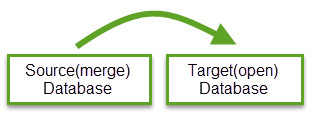

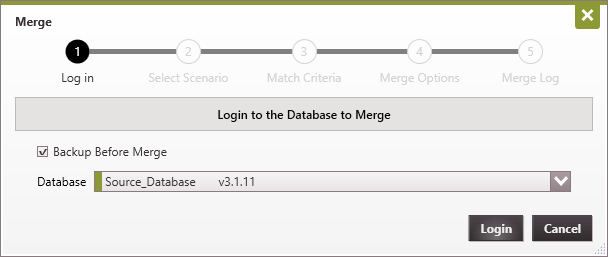
The merge tool is used to move data from one PHDwin database to another. The source database you would like to merge in must already be logged in on PHDwin in the same instance as the database you are currently in. You are not able to merge a .phz3 file directly into a database. To begin, log in to the target database that you'd like to bring data into. Then, go to the Tools tab of the Home ribbon and choose Merge. This will take you through the process of logging into the database you'd like to merge in (source), choosing the scenarios you'd like to merge, how to match cases that come in, and what attributes to overwrite. At the end of the process, a log will be displayed to summarize what data has been merged. All other users must be logged out of both databases you're using before you can finish the merge. You can warn them before-hand using the chat feature, or broadcast to all users in the database after you choose the merge settings. Step 1: Login 1.Choose the source database that you would like to merge into the database you are currently logged into. It is recommended to backup the target database before merge by checking the backup option. 2.Click Login.
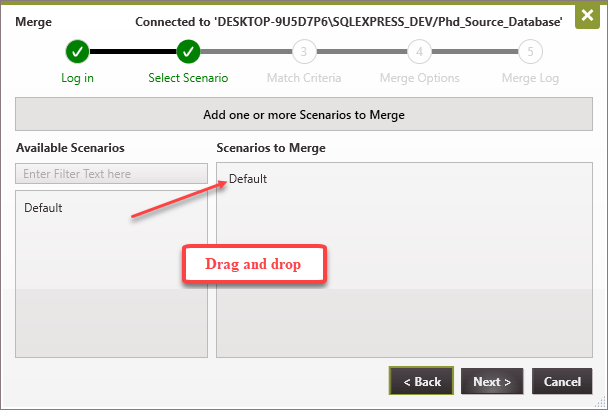
Step 2: Select Scenario This is where you can choose which scenario(s) you'd like to merge. If you are trying to get a subset of cases, it may be helpful to create a new scenario in the source database that contains only the case(s) and qualifier(s) that you wish to merge into the target database. The Default scenario contains all cases in the database. If scenario settings are equal then source will overwrite target. If settings are different, "1" will be appended to the name of the source database scenario. 1.Drag and drop the scenario would like to merge into the Scenarios to Merge box. In the current version, you can only merge one scenario at a time. 2.Click Next
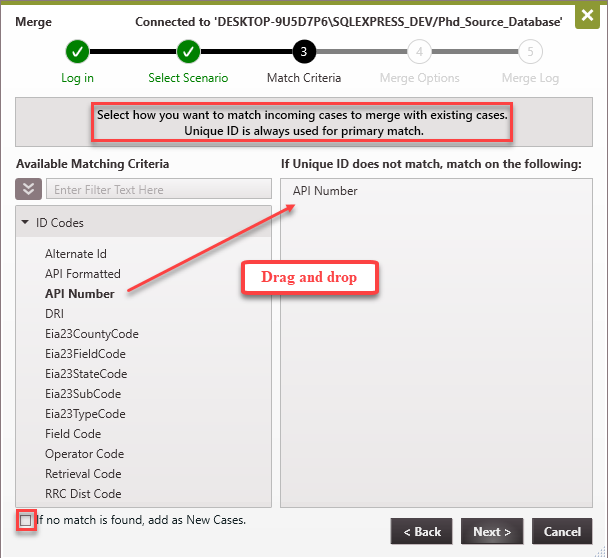
Step 3: Match Criteria The merge can be used to add new cases or merge changes from one database to another that may include the same cases. The matching criteria allows you to choose how to match the incoming cases to the existing ones in the target database. 1.By default, all cases will match on Unique ID, it is not necessary to add more criteria. However, if you'd like to use a secondary identifier in case the Unique ID does not match, you can drag and drop the criteria from the available space to the blank part on the right. Only ID code are allowed for matching cases. 2.If you'd like to bring in new cases as well, check the box at the bottom. Cases that do not have a 'match' will be added to the database as new cases. If this box is not checked then all cases that do not match based on Unique ID or specified matching criteria will not be transferred into the target database.
If there are multiple matches on the unique ID or ID chosen, nothing is brought in. For example, if "Field Code" is the only chosen backup ID, there can be many cases in the same field, so there will be no way to know which case to merge the incoming case into. Therefore, you must choose additional criteria that makes it easier to match a specific case.
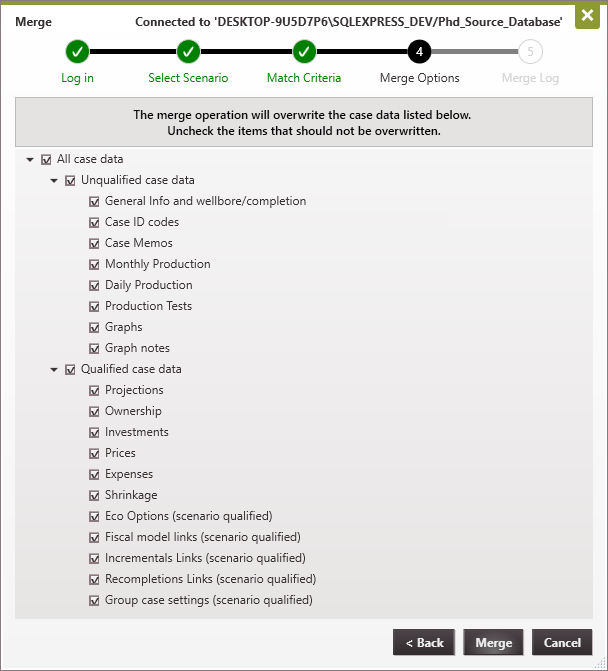
Step 4: Merge Options 1.Choose which data should be overwritten by putting a check-mark next to any of the items below. Note: All qualified data (Expenses, Investments, Ownership, Prices, Projections and Shrinkage) in the primary qualifier of the scenario that your transferring data from will overwrite the target database's primary qualifier.
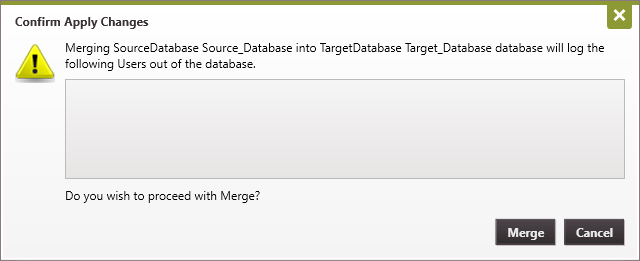
2.Once all of the options are selected, click on Merge. 3.If there are other users in the target database, they will be logged out of the database. Click Merge to proceed with merging.
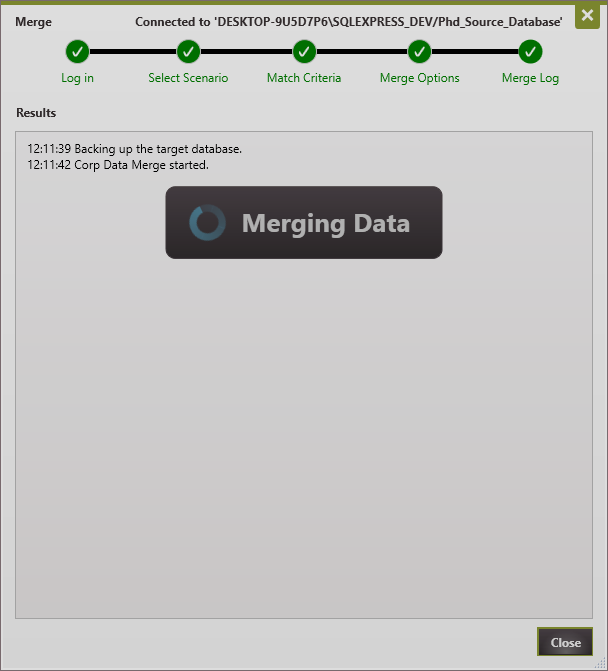
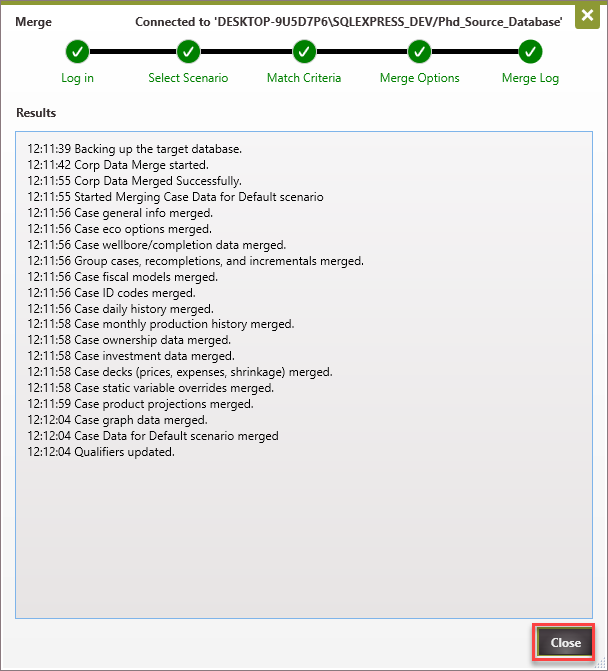
Step 5: Merge Log A log showing the merge process is displayed. Once the merge is complete, click "Close" on the merge log to return to the merged database. |

 What Happens in Database Settings, Scenario Settings, and Private Data
There is also some data that will never be overwritten during a merge, and some data that is always overwritten in the merge. Database Settings •Currency Conventions - All currency conventions will remain the same as they are in the target database - never changes •ID Codes - adds any new ID code labels •Products Configuration - must have the identical phase configuration name and product definitions to be a match. Even if one thing is different you get a new phase configuration with a (1). •Classification Categories - adds/appends new categories, nothing is reorganized though •Conventions - if definitions aren't identical, a new convention will be added with a (1) •Fields, Reservoirs & Zones - stays as is, new fields, reservoir, zones can be added/appended •Streams - stays as is or adds a new stream. •Investments/Depreciation - new investment categories can be added, all definitions for existing categories will remain the same (like report category, depreciation models for each purpose, etc). If an investment category that is in the source database (but not in the target database) and it is assigned to a cash template with a depreciation models for each "purpose", it gets appended to the already existing cash template.
Scenario Settings •Hierarchy of qualifiers - will remain the same as in the target database - new qualifiers that are a part of the scenario will be added but can be rearranged. •Recompletion Tree, Incremental Tree - option to leave as is in the target database or completely overwrite with the tree from the source database •Group Cases - new group definitions are always created based on the source database - source database overwrites target database. |