Navigation: Running Reports > V3 Connect >


 Setting Up the V3 Connects Spreadsheet
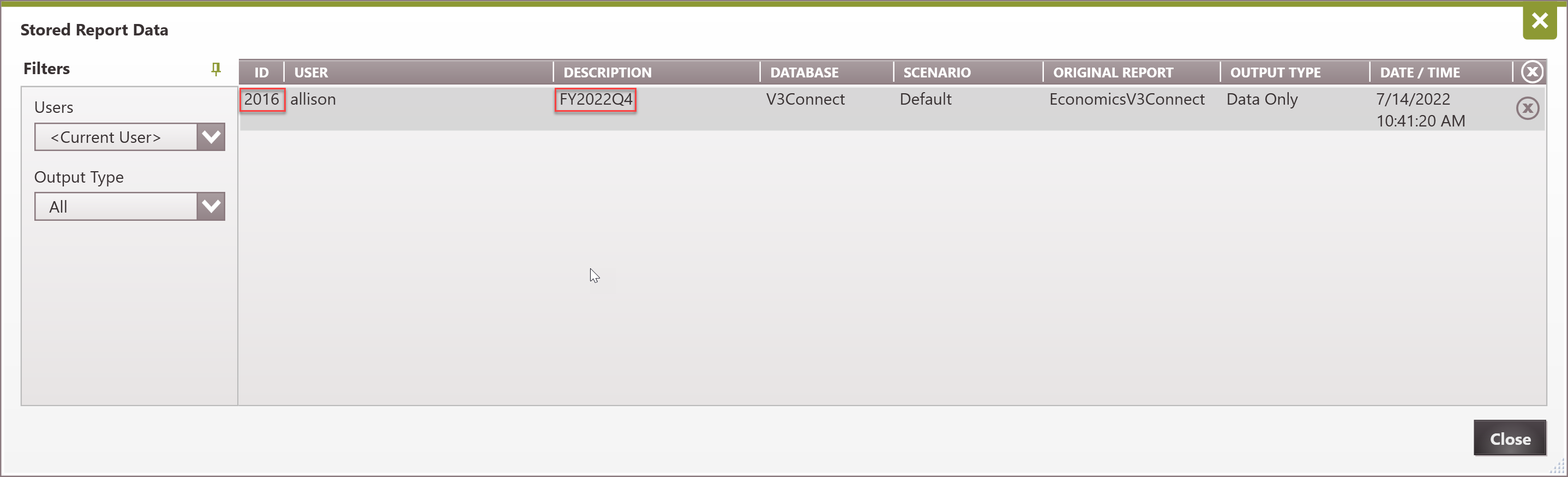
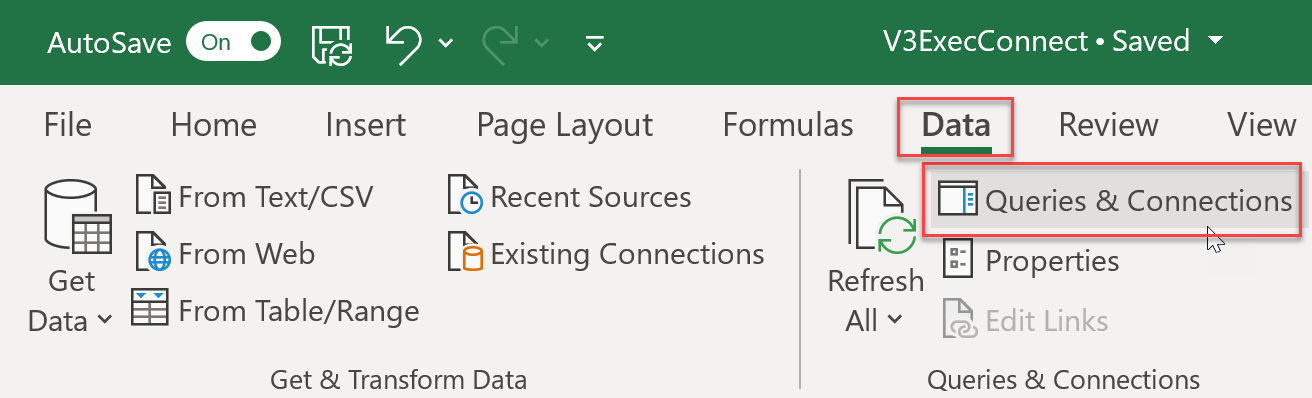
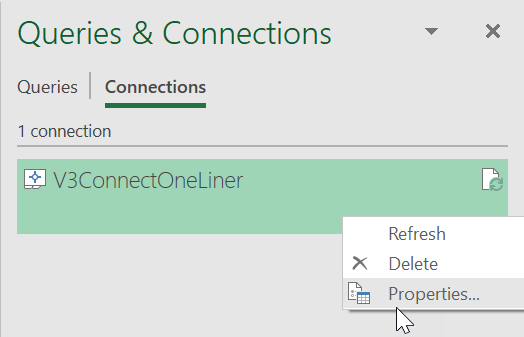
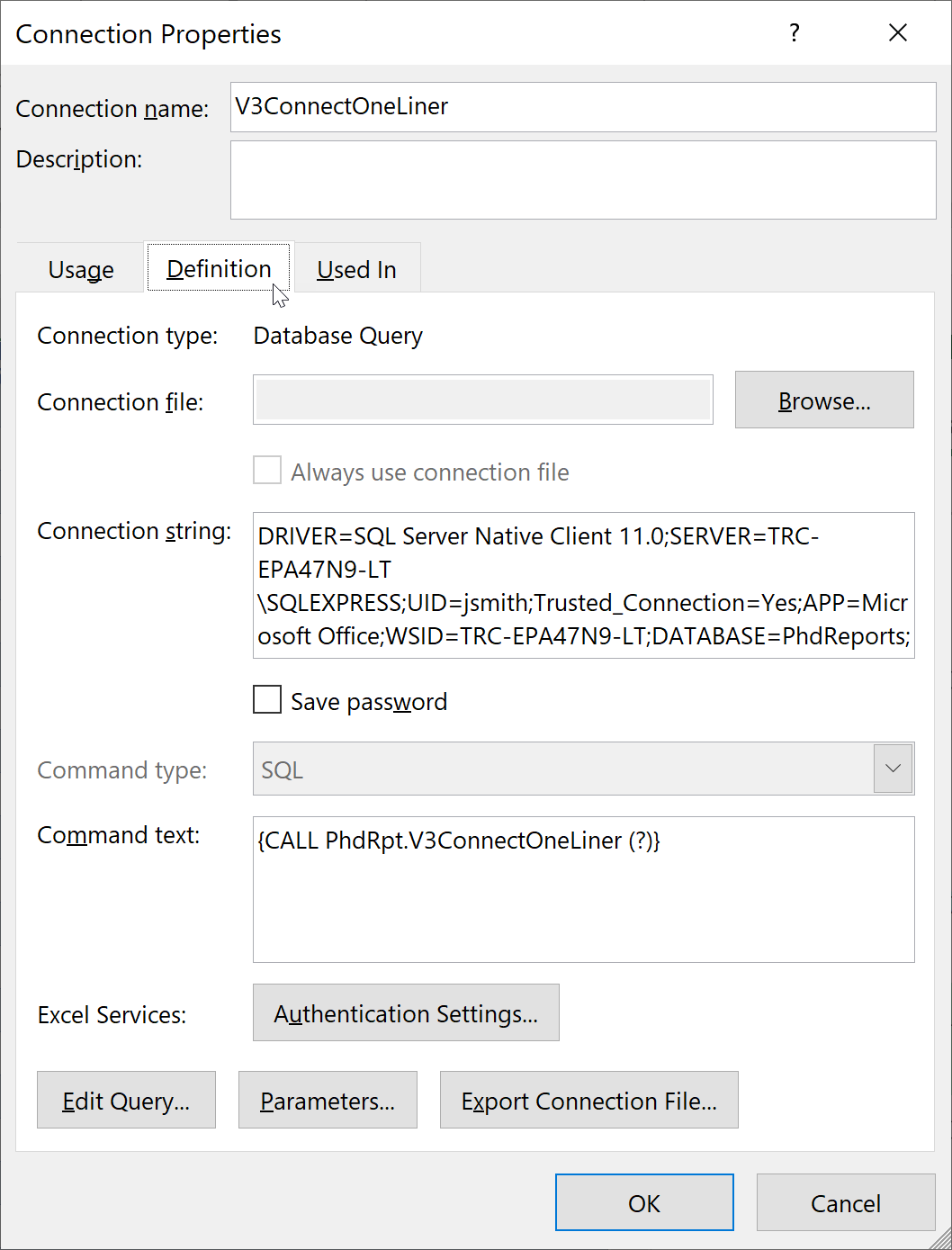
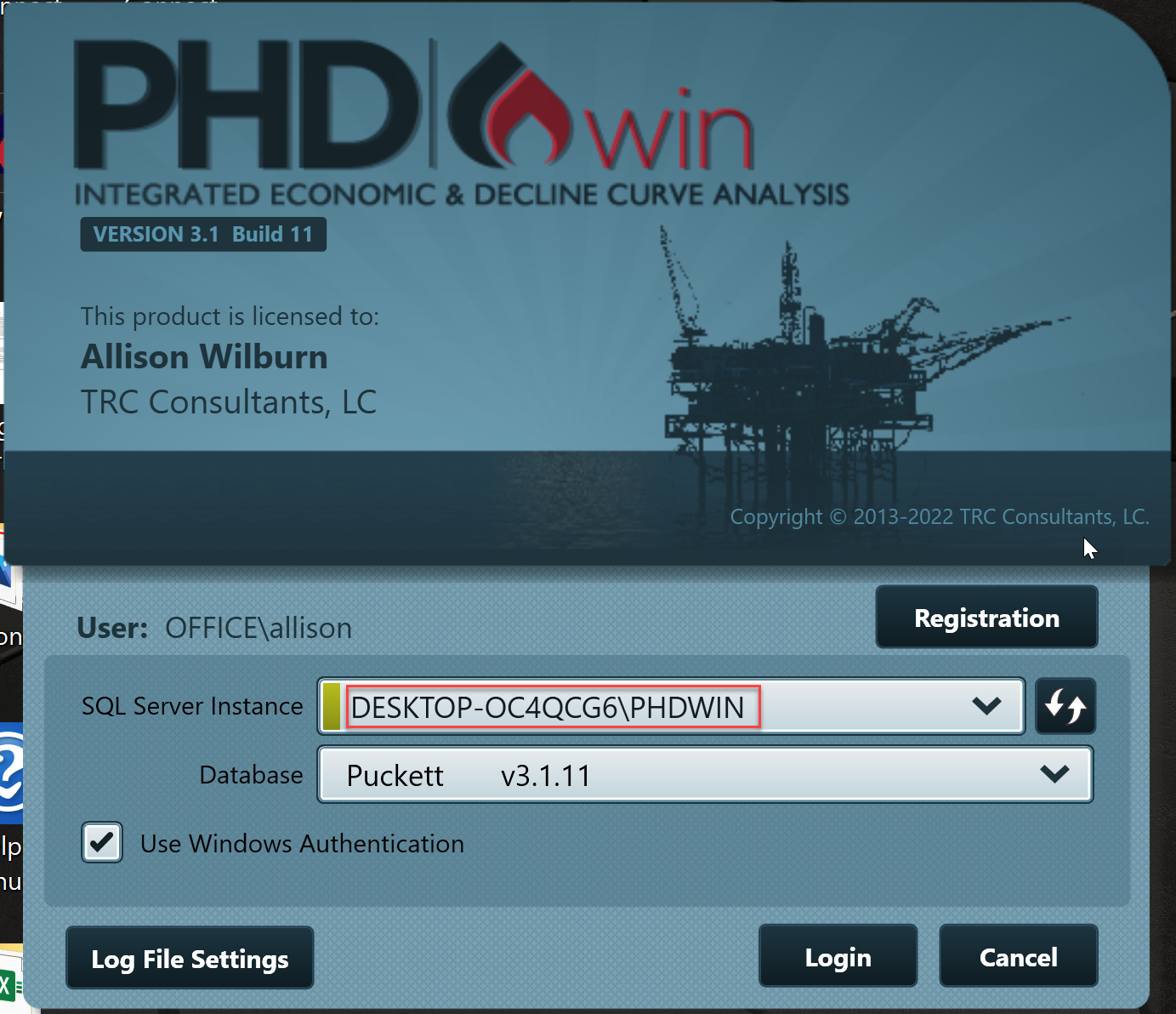
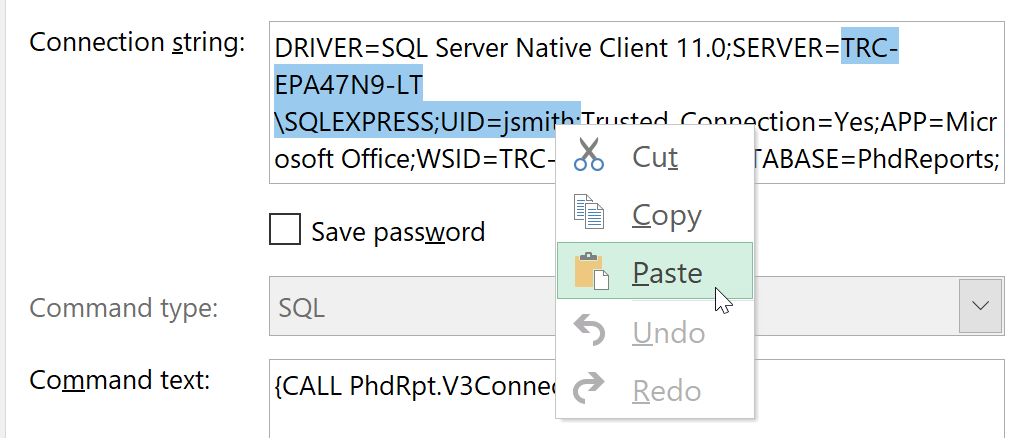
Before running the spreadsheet, it is important to first set up the Queries & Connections for it to run with your SQL Server Management Studio. To do this, following the steps outlined below. 1.Open the Excel Spreadsheet V3ExecConnect.xlsm, V3TechConnect.xlsm, or other advanced sheets. 2.Before connecting the SQL server, input a Report ID from Stored Report Data in PHDwin into the yellow cell in the "Start Here" sheet. 3.A Report ID can be found in the first column of the Stored Report Data window and will be used later in the spreadsheet tool to query the correct report data 4.Click on the Data Ribbon 5.Select Queries & Connections 6.A Queries & Connections window will open to the right of the screen 7.Make sure that you click on the Connections option in this panel and you should see a list of the connections used by this spreadsheet 8.Right-click the first connection and select Properties 9.From the properties window, select the Definition tab 10.The Connection String needs to be updated to point your SQL Server Instance. Open PHDwin v3 to the Login screen and copy the name of your SQL Server Instance 11.Edit the Connection String by highlighting the text between "Server=" and the semicolon before "Trusted_Connection" and paste over it with your SQL Server Instance name.
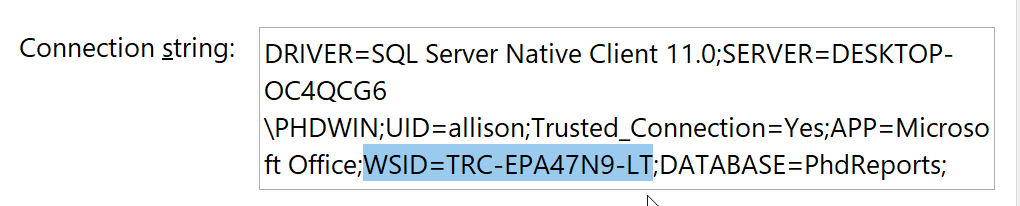
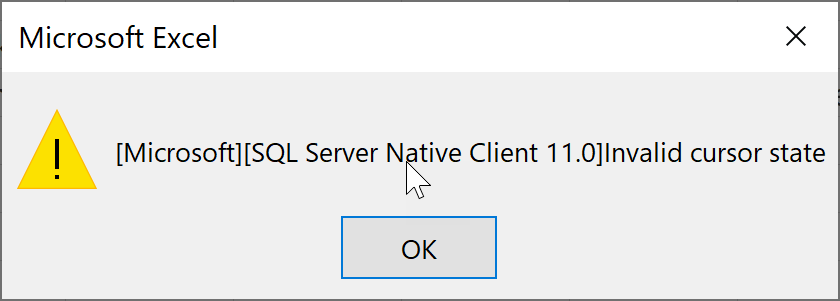
12.In addition, delete WSID through to the semicolon as well 13.Press OK Warning: You may encounter an error message when you press "ok" but no fear, that will occur if there isn't a valid Report ID on the first page. 14.If you reopen the properties window, it should now have filled in with your server after WSID. 15.Now that you have the correct connection string, copy the whole string and proceed with pasting the new string into the remainder of the Connections. |
|


Making an Economic Run and Retrieving the Report ID
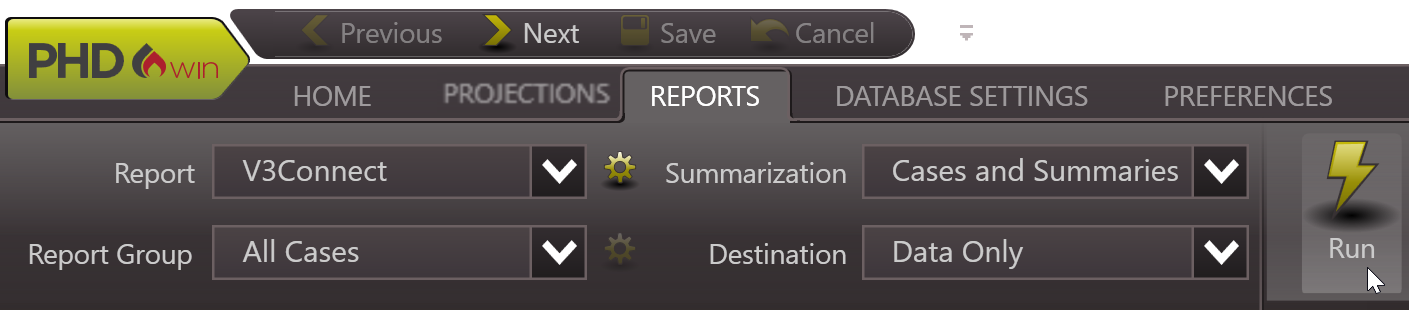
There are specific settings that need to be implemented in order for proper reporting to occur. You must use the settings below for the tool to run correctly. 1.Go to the Reports Ribbon 2.Select: a.Report à V3Connect b.Report Group à Any Case Selection c.Summarization à Cases and Summaries d.Destination à Data Only e.Click Run 3.When you make a run, you will be asked to provide a description of the report. Name it anything you like, though we recommend using a meaningful naming convention that will help you recall the contents of the report, like "2022Q1" or would want as a header for your spreadsheet. 4.Go to Stored Report Data in the right-hand side of the Reports Ribbon to retrieve the current Report ID |
1.Once set up, all V3Connect sheets behave similarly, so for this exercise, we will navigate to the Start Here page of the V3ExecConnect.xlsm file 2.Input the new Report ID from Stored Report Data in PHDwin into the yellow cell on the spreadsheet 3.Click the green refresh button 4.It will now fill in all of the data for all spreadsheets in the workbook |
