Navigation: Running Reports >


A Batch report is a sequence of reports to be run with possibly different parameters, such as which report to run, scenario, report group, sort, and filter. It was designed to enable users quickly and efficiently queue and print multiple reports. This saves time and resources, especially on larger databases, or when several reports are being sent to the printer.
Batch reports are controlled by defining a "batch". Each batch is made up of a series of lines that instructs PHDWin what report type to run. Each line represents a single report run and specifies the following information: report type, scenario, report group, specific Sort Order and Filter. A batch is database specific. and depending on the access level set for the batch, it can be shared with others similar to the behavior of access level across PHDWin V3.
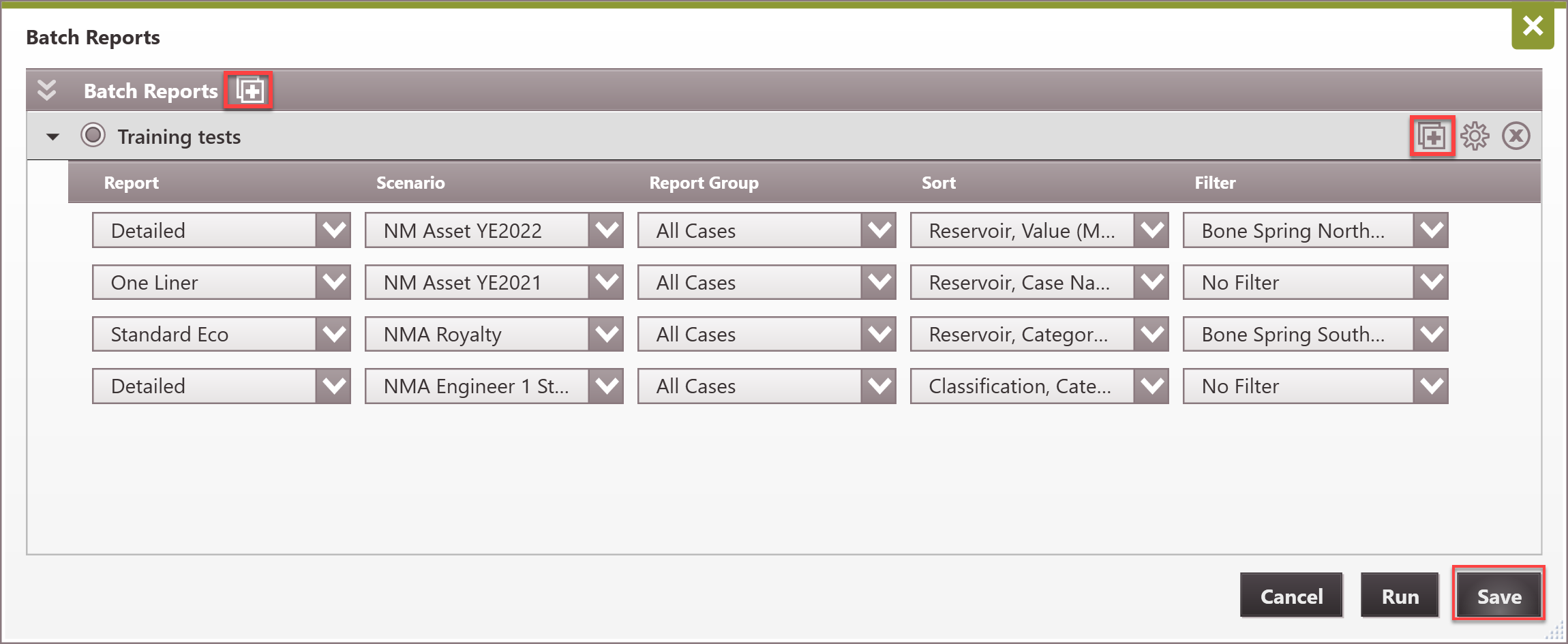
The first step to running a batch report is to create a batch, which can be found by going to Reports ribbon | Batch reports. A batch can be saved for future use so that you will not have to recreate them each time the batch report is to be run. To create a new batch: 1.Go to reports ribbon and click on Batch Reports button in the RUN section 2.Click on the 3.Add report lines to the batch. To do this: a.Click on the b.Use the dropdown menu under each item to select the report type, scenario to run, report group, sort, and filter. c.Repeat this process to add more report lines to the batch. d.if you added a report and want to delete it, select the report line and click on the 4.Click on the 5.Click on the 6.Repeat the process to create additional report batches if needed. 7.Click Save to save the batch(es) created.
|


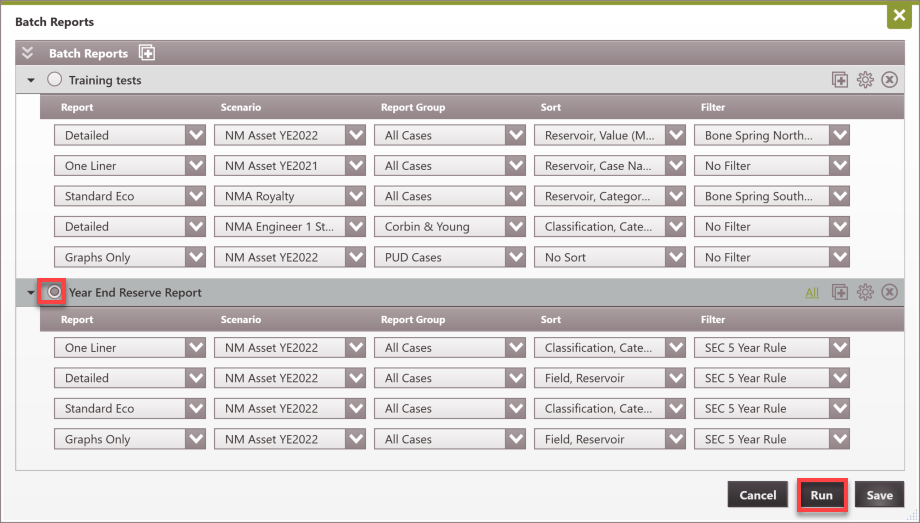
After creating the batch as shown above, to run a batch: 1.Go to reports ribbon and click on Batch Reports in the RUN section 2.Select the desired batch by clicking on the radio button next to its name. 3.Click the Run button to initiate the reports in the selected batch.
|
 Other Report Settings Used for Batch Report
The other settings that the batch report honors are the selections in the report ribbon. These are: 1.Report settings: Any additional report settings made to a specific report such as graph collation, number of years to output, number of years monthly, etc. These are found by clicking on the 2.Summarization: •Cases and Summaries - generates a report for each case, in addition to summaries set up in the sort order. •Cases only - This option generates a report for each case, no summaries. •Summaries only - no individual case report is generated, only the summaries set up in the sort order. •Grand total only - prints a grand total page - summaries or individual case reports are not generated. 3.Destination: - choose to send the report directly to the default printer that is set up on the machine, a Preview Window, open as a PDF, Data only or directly to Excel. 4.Additional settings: •Revenue - displayed in standard, thousands (M) or millions (MM) of the selected currency units. •Units - set the unit convention for the products. This can be either Imperial or SI units. •Currency - set the currency for the products. Several options are available, including US dollars ($), British pound (£), Euros (), etc.
|
