Navigation: Navigating the Program & Interface >


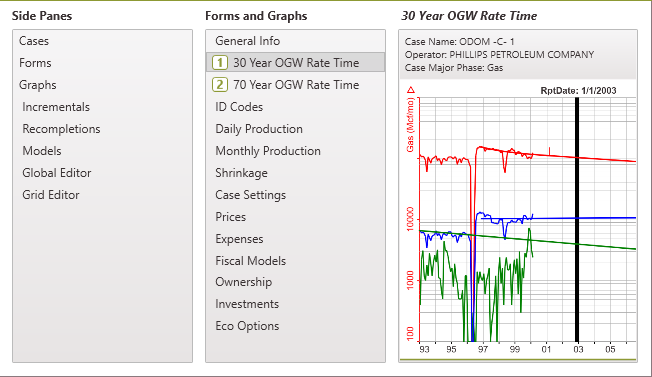
PHDwin offers a convenient feature that facilitates navigation between forms using the keyboard. This feature is called the Dock Navigator. To open the Dock Navigator window, hold down the CTRL+Tab keys. To keep the window open, hold down CTRL and use the Tab or arrow keys to move through forms to make a selection.

Once the Dock Navigator window is open (by holding down the CTRL key), the content that is displayed depends on the currently selected view. The window contains Side Panes, Forms, and Graphs and allows any of them to be selected. It provides a preview of the selected form or graph. Use the arrow keys to select a form that is not yet active and either press ENTER or release the CTRL key to open/activate it. |