Navigation: Database Settings >


Notice that to specify the Classification, Category, and Sub-Category for each case on the General Info tab, there is a drop-down menu to choose from, and users cannot type in anything in this field. The list available on this drop-down menu can be customized by going to the Database Settings Ribbon and clicking on Classifications and Categories. Sorting the Case List by Reserve Classification, Category, or Sub-category also mimics the order set up here.
 The Difference and Relationship between Categories, Classifications, and Sub-categories
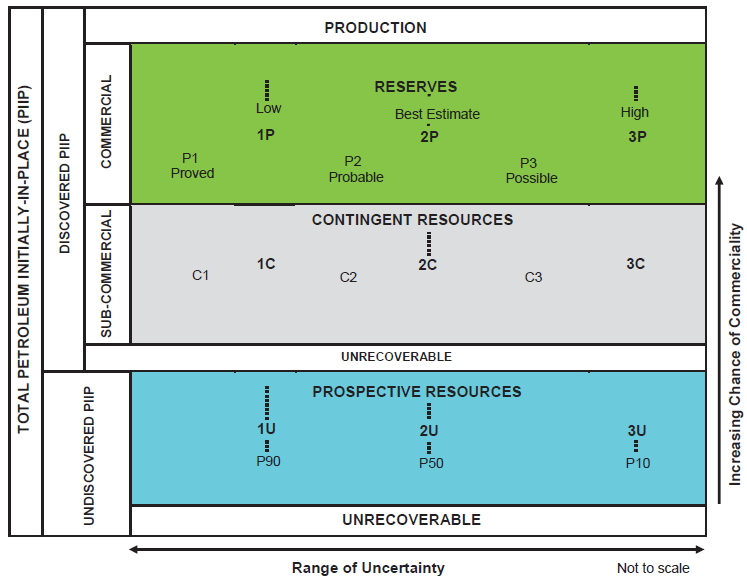
•Classification - This describes the commercial certainty of the case. The default classifications are Reserves, Contingent Resources, and Prospective Resources, which translate into Commercial, Sub-Commercial, and Potentially Commercial respectively. Each classification has its own set of categories that describe the technical uncertainty associated with the case. Details of the definitions of each classification, category and sub-category can be found in the PRMS report.
•Categories - This describes how likely a well or case will be productive or contain hydrocarbons. For Reserves, the cumulative terms low/best/high forecasts are used to estimate the 1P/2P/3P reserve quantities, respectively. For reserves classification, the default categories are Proved, Probable, and Possible. These incremental reserve quantities are determined based on analysis of geoscience and engineering data. •Proved Reserves (P1) are those that "can be estimated with reasonable certainty to be commercially recoverable from known reservoirs and under defined technical and commercial conditions". •Probable Reserves (P2) are "those additional Reserves which are less likely to be recovered than Proved Reserves but more certain to be recovered than Possible Reserves". •Possible Reserves (P3) are "those additional Reserves that are less likely to be recoverable than Probable Reserves". •For Contingent Resources, the cumulative terms low/best/high estimates are used to estimate the 1C/2C/3C quantities, respectively. The terms C1, C2, and C3 are defined for incremental quantities of Contingent Resources. •For Prospective Resources, the cumulative terms low/best/high estimates also apply and are used to estimate the 1U/2U/3U quantities. No specific terms are defined for incremental quantities within Prospective Resources.
Resources classification framework from PRMS report. |
Where Do I Set Up the Available Classifications and Categories?
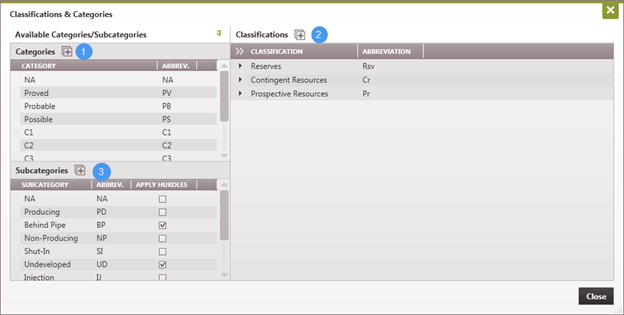
Go to the Database Settings Ribbon, click on Classifications and Categories, and click Edit to enter Edit Mode.
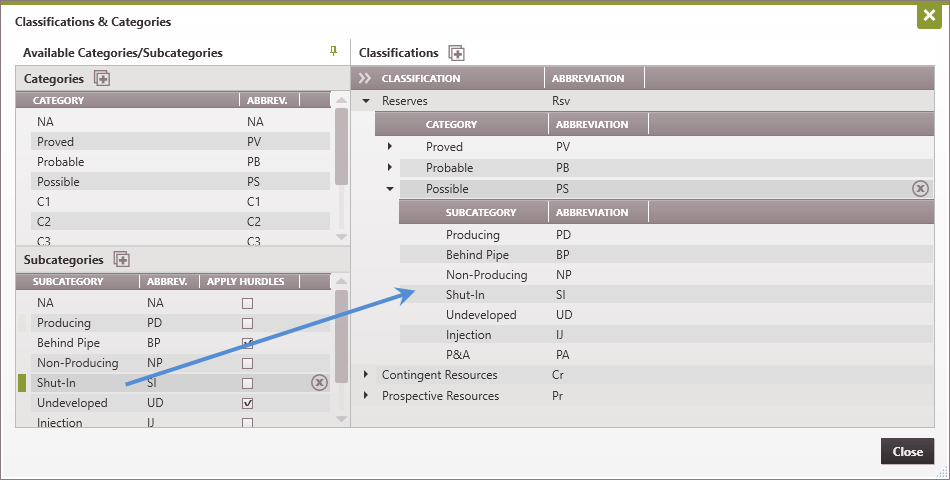
Adding and Editing the Categories Some users prefer to classify Probable and Possible under a Blanket "Unproved" category. This could be achieved by adding a new category. To add new Classifications, Categories, and Subcategories, click on the Arranging the Categories Ordering is important - the order of the Categories and Subcategories in the flyouts on the left is the same order that reports will print in when sorting by these fields. To organize the hierarchy of Categories and Subcategories under the Classifications, drag and drop the name of the Categories and Subcategories up or down on the flyout list. Assigning Categories and Subcategories to a Classification Use the lists on the left to add Categories and Subcategories to each classification on the right. The Subcategories allows users to choose whether or not to apply hurdles. First, drag and drop the available categories below the classification. Then, drag and drop any Subcategories below each category name.
To Delete Groups Hover over the name of the group - click on the |