Navigation: »No topics above this level«


|
To see the order in which groups are compiled, you can set up a registry entry so that a log file will be created each time you compile your group cases. The log file will continue to grow and append records to the end until you delete it. You can just delete the whole file and it will regenerate. You will need to delete the entire registry key if you do not want the log file to be created anymore. To set up the registry entry: 1.Close PHDwin. Open the Task Manager and make sure to end the process named PHDEco.exe. 2.Open Notepad and type the text in between the lines below: ------------------------------------------------------------------------------------------------------------------------------------ Windows Registry Editor Version 5.00
[HKEY_LOCAL_MACHINE\SOFTWARE\TRC Consultants\PHD\Error Log] "Filename"="\\Server\\users\\UserName\\My Documents\\Log Files\\GroupLogging.csv" "Levels"=dword:00000040 "Systems"=dword:00000040
------------------------------------------------------------------------------------------------------------------------------------- Note: The line that begins with "Filename" dictates where the file will be created and the actual name of the file that is created. The text in blue listed above is a just a sample - you can pick any location and file name that you'd like and replace the blue text . The directory that you choose here must have read & write permissions. You can also name the file whatever you'd like. The example file here is named GroupLogging.csv. You can also use a .txt extension if you prefer.
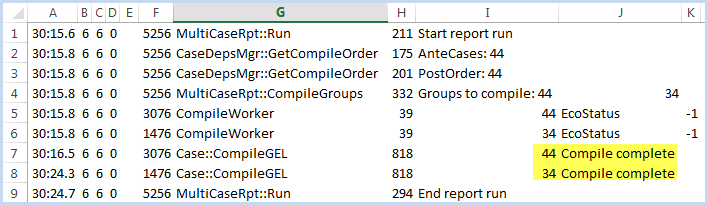
3.Save the file on your computer as Error Log.reg. 4.Open a Windows Explorer and find the Error Log.reg file. Double-click on the file to Run it, and it will warn you that you are about to update the registry, say OK. 5.Now you can open PHDwin and run a report to see the order that groups were compiled - make sure to include the group cases. 6.Open up the logging file at the location that you specified in step 2. If you've created a .csv file, you can open it in Excel. The first column will be the date & time of the report/compile - since the file can keep growing if you don't delete it, you may need to filter to the most current run - it will always be last. Column J will mark the cases where a group case was compiled by saying "Compile Complete". They will be in the order in which the compile occurred. Column I will show the Case ID so that you know which case it is referencing in PHDwin. For example, in the image below, two group cases were compiled. First 44, then 34:
7.If all of your groups were not listed in the log, you can manually mark them as "unresolved" by running a script in SQL Server Management Studio. After this they will all need to recompile on the next report run. a.Open up SQL Server Management studio and log in to the server that stores the database you're working on. b.Click on New Query. c.Type the following text: use Phd_SampleDatabase -- substitute your database name update cases.EclEcoStatus set EcoStatus = -1 where --The where clause is optional. You can filter cases however you want, erase this line if you are not using it d.Click Execute. 8.Now you can rerun the report & see the changes to the log file. |