S/N
|
Program Area
|
Hot Key
|
Function
|
1
|
Universal
|
PgUp
|
Save case and move to previous case in case list.
|
2
|
Universal
|
PgDn
|
Save case and Move to next case in case list.
|
3
|
Universal
|
Ctrl + PgUp
|
Move to previous case in case list without a case save. If there are unsaved changes, you get a prompt to save.
|
4
|
Universal
|
Ctrl + PgDn
|
Move to next case in case list without a case save. If there are unsaved changes, you get a prompt to save.
|
5
|
Universal
|
Ctrl + S
|
Force case save.
|
6
|
Universal
|
Ctrl + Del
|
Cancel any cases edits. Case reverts to last saved condition.
|
7
|
Universal
|
Ctrl + R
|
Refresh case data.
|
8
|
Universal
|
Delete
|
Delete case or other object in focus.
|
9
|
Universal
|
Ctrl + N
|
Create new Standard Case and position to the new case.
|
10
|
Universal
|
Ctrl + I
|
Open Import window. Most movement for common imports can be navigated without mouse interactions. Selecting files and Import mapping require mouse input.
|
11
|
Universal
|
Ctrl + S + C
|
Open Scenario selection Drop down. Arrow keys and Enter can be used to make a selection.
|
12
|
Universal
|
Ctrl + Tab
|
Open Form Navigator. This is a very powerful tool. Window will stay open as long as you hold down the Ctrl key. Arrow keys can be used to select other forms or graphs.
|
13
|
Universal
|
Ctrl + Shift + L
|
Toggle to Pin and Unpin Case List.
|
14
|
Universal
|
Ctrl + Shift + F
|
Toggle to pin and Unpin Forms list.
|
15
|
Universal
|
F11
|
Toggle Maximize/Restore active Form
|
16
|
Universal
|
Ctrl + F
|
Open Find window and position to find input for typing.
|
17
|
Universal
|
Ctrl + A
|
Select all in any list that has focus.
|
18
|
Universal Bookmark
|
F9
|
Bookmark Current Case.
|
19
|
Universal Bookmark
|
Ctrl + Shift + F9
|
Move to case previously bookmarked in case list.
|
20
|
Universal Bookmark
|
Ctrl + F9
|
Move to next case bookmarked in case list.
|
21
|
Universal Bookmark
|
Shift + F9
|
Remove Bookmark from selected case.
|
22
|
Universal Bookmark
|
Ctrl + Shift + B
|
Open Book Management Window which lists bookmarked cases. Arrow keys can be used to select and control bookmarked cases from the list.
|
23
|
Sorts
|
Shift + S
|
Opens the sort dropdown List. Use up and down Arrow to select a specific Sort to load.
|
24
|
Sorts
|
XXXX
|
Each Sort in a database can be given a unique Hot Key sequence to execute. All Sorts available to a user are listed.
|
25
|
Filters
|
Shift + F
|
Opens the Filter dropdown List. Use up and down Arrow to select a specific Filter to load.
|
26
|
Filters
|
XXXX
|
Each Filter in a database can be given a unique Hot Key sequence to execute. All Filters available to a user are listed.
|
27
|
Views
|
Ctrl + V + R
|
Refresh/reload Current view.
|
28
|
Views
|
Ctrl + V + S
|
Save changes to current View.
|
29
|
Views
|
Ctrl + Shift + V + S
|
Save Current view as a new View. User will be prompted for new View name.
|
30
|
Views
|
XXXX
|
Each View in a database can be given a unique Hot Key sequence to execute. All Views available to a user are listed.
|
31
|
Product Configurations
|
Ctrl + /
|
Open Phase Configuration Drop Down. Arrow Keys can be used to select a new phase configuration to be loaded. PHDwin will try and change the current projections to the new Phase configuration.
|
32
|
Product Configurations
|
Ctrl + Shift + /
|
Open Product and Phase Configuration window in the database settings. Most editing in this window will require mouse to edit. Once set up, users should not be editing much here.
|
33
|
Product Configurations
|
XXXX
|
Each Phase Configuration in a database can be given a unique Hot Key sequence to execute. All Phase Configurations available to a user are listed.
|
34
|
Projections
|
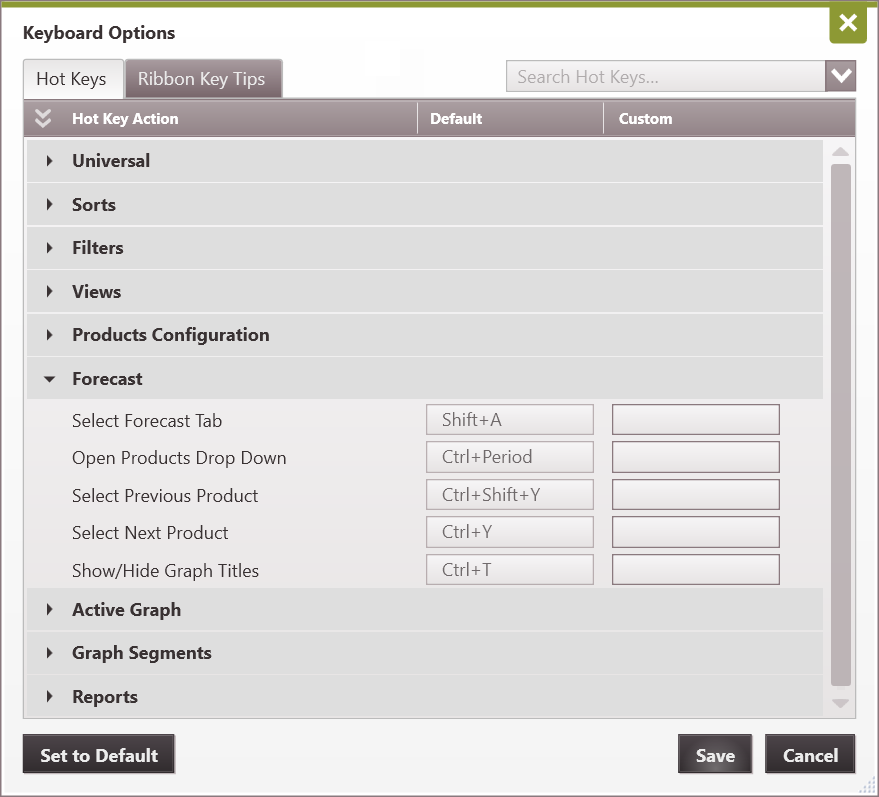
Shift + A
|
Select Projection ribbon.
|
35
|
Projections
|
Ctrl + "."
|
Open Product Drop Down list. All available products are listed. Arrow keys can be used to select and product to be edited. Even products not on a graph can be selected and edited.
|
36
|
Projections
|
Ctrl + Y
|
Select Next Product in list without opening list. Used mostly for moving between common products.
|
37
|
Projections
|
Ctrl + Shift + Y
|
Select Previous Product in list without opening the list. Used mostly for moving between common products.
|
38
|
Projections
|
Ctrl+ M
|
Lock current product projection end date to Major Phase.
|
39
|
Projections
|
Ctrl+ L
|
Lock current products first Projection segment Start Date to major phase first segment start date. Commonly used for Undeveloped. Keeps projections together.
|
40
|
Projections
|
Ctrl+ E
|
Force Exponential projection.
|
41
|
Projections
|
Ctrl+ D
|
Lock/Unlock fixed decline for mouse movements.
|
42
|
Projections
|
Ctrl+ A
|
Add Projection segment to the left of current product.
|
43
|
Projections
|
Ctrl + Shift + A
|
Open Add Segment Drop Down.
|
44
|
Projections
|
Delete
|
Delete projection segment in focus. Opens delete dialogue. Use Tab to select options.
|
45
|
Projections
|
Ctrl + Comma
|
Open Selected Segment Drop Down to pick a segment.
|
46
|
Projections
|
Ctrl + Shift + Comma
|
Open Change Segment Type Drop Down (Arps, Lin-Time, Scheduled, SEDM or Flat). Changes selected segment type.
|
47
|
Projections
|
Ctrl + W
|
Toggle Walk Mode On/Off.
|
48
|
Projections
|
Ctrl + B
|
Toggle Bendy B function for Arps. Used with mouse. Also double click on middle handle.
|
49
|
Projections
|
Up/Down Arrow
|
Use the up/down arrow keys to increase/decrease b factor by 0.1 while cursor is in the b factor cell.
|
50
|
Projections
|
Ctrl + [
|
Previous Segment.
|
51
|
Projections
|
Ctrl + ]
|
Next Segment.
|
52
|
Projections
|
Up arrow
|
Move current segment Qi up.
|
53
|
Projections
|
Down arrow
|
Move Current segment Qi Down.
|
54
|
Projections
|
Right Arrow
|
Increase Decline.
|
55
|
Projections
|
Left arrow
|
Decrease Decline.
|
56
|
Projections
|
F3
|
Copy the effective qualifier to the primary qualifier and save the case, even if no edits to projections have been made.
|
57
|
Projections
|
F4
|
Copy the effective qualifier to the primary qualifier and save the case, and advance to the next case in the case list.
|
58
|
Projections
|
F5
|
Copy the effective qualifier to the primary qualifier and save the case, and advance to the next case in the case list that does not have data in the primary qualifier.
|
59
|
Graphs and Zoom
|
Minus
|
Zoom out (can also use mouse wheel).
|
60
|
Graphs and Zoom
|
Plus
|
Zoom in (can also use mouse wheel).
|
61
|
Graphs and Zoom
|
Ctrl + Shift + Minus
|
Decrement Y access Log Cycle.
|
62
|
Graphs and Zoom
|
Ctrl + Shift + Plus
|
Increment Y access Log Cycle.
|
63
|
Graphs and Zoom
|
Shift + Plus
|
Zoom X Axis In.
|
64
|
Graphs and Zoom
|
Shift + Minus
|
Zoom X Axis Out.
|
65
|
Graphs and Zoom
|
Ctrl + Plus
|
Zoom Y axis In.
|
66
|
Graphs and Zoom
|
Ctrl + Minus
|
Zoom Y axis Out.
|
67
|
Graphs and Zoom
|
Ctrl + Shift + Left
|
Scroll Zoomed X Axis Left.
|
68
|
Graphs and Zoom
|
Ctrl + Shift + Right
|
Scroll Zoomed X Axis Right.
|
69
|
Graphs and Zoom
|
Ctrl + Shift + Up
|
Scroll Zoomed X Axis Up.
|
70
|
Graphs and Zoom
|
Ctrl + Shift + Down
|
Scroll Zoomed X Axis Down.
|
71
|
Graphs and Zoom
|
Ctrl + G
|
Open Graph Properties on graph in Focus.
|
72
|
Graphs and Zoom
|
Ctrl + N
|
Add Graph annotation. Mouse will be needed to place annotation if not date and rate specified.
|
73
|
Graphs and Zoom
|
Ctrl + P
|
Print graph in Focus.
|
74
|
Graphs and Zoom
|
Ctrl + Shift + P
|
Print graph in Focus to Clipboard.
|
75
|
Graphs and Zoom
|
Ctrl + T
|
Toggle for Show/Hide Graph Titles.
|
76
|
Reports
|
Ctrl + R + S
|
Open Reports Drop down.
|
77
|
Reports
|
Ctrl + R + G
|
Open Reports Group Drop Down.
|
78
|
Reports
|
XXXX
|
Add New Report.
|
79
|
Reports
|
XXXX
|
Edit selected report properties.
|
80
|
Reports
|
XXXX
|
Run specific report (i.e. run RS report on any selected wells).
|