Navigation: »No topics above this level«


The full setup instructions for Microsoft SQL Server can be found on the Microsoft Developer Network Website. The following section gives a basic overview for installing SQL Server Express and additional considerations when installing SQL Server for PHDwin Version 3.
 Downloading the SQL Server Installation File
1.Go to www.microsoft.com. 2.Choose Downloads > Download Center. 3.Click on Products > All Downloads. 4.Search or scroll to find the version of SQL Server or SQL Server Express that you'd like to download. PHDwin is compatible with SQL Server Express 2012 or later. 5.Choose the Language for the install. 6.Before you click download, expand the Details section at the bottom to review the list of files that are available to download so that you can choose the one that you're going to use. 7.Click on Download and choose the file - At the very minimum you'll need to download the Express database engine. You may want to download Express with Tools which will also contain SQL Server Management Studio which is recommended for troubleshooting. There are 2 versions of each download - the 64-bit(x64) or or 32-bit(x86). You can check the System Type of your computer by going to the Start Menu, right-clicking on Computer and then choosing Properties. Next to System Type it will tell you if you have a 32-bit or 64-bit operating system. 8.Once you've selected the file, click Next to begin the download.
|
Before installing PHDwin, you'll first want to install Microsoft SQL Server Express. To run the installation: 1.Open windows explorer and go to the Downloads folder (or the location that you downloaded the file). Double-click on the file named SQLEXPR_x64_ENU.exe to begin the installation. 2.This will open the SQL Server Installation Center - click on New SQL Server stand-alone or add features to an existing installation. 3.This will open the SQL Server 2017 Setup window. Review and accept the license terms and click Next. 4.On the Product Updates page - check the box to Include SQL Server product updates if there are any and click Next. 5.On the Installation Type page, choose Perform a new installation of SQL Server 2017 and click Next. 6.On the License Terms page - Accept the License Terms and click Next. 7.On the Feature selection page, choose the Database Engine Services at the very minimum and click Next. Note: You can also choose to install Management Tools - Basic which is the database management interface - but this can also be installed at a later time if you need it. You do not need to install SQL Server replication, Reporting Services, Analysis Services or Business Intelligence to run PHDwin. 8.On the Instance Configuration page - You can use the default instance or choose to name the instance. Instance names cannot not be changed once the initial instance name has been established. Microsoft recommends that you use the default instance if it will be the only one on the machine. If you name the Instance, be sure to make a note of the name so that you can select it later when you go to run PHDwin. The instance name cannot contain any special characters (besides underscore) or spaces. 9. On the Server Configuration page - leave both accounts to automatically start up and click Next. Note: It is especially important to leave the SQL Server Browser to start automatically if you are installing on a server. This means that the instance will show up when the users browse for an instance to connect to within PHDwin. 10.On the Database Engine Configuration page, you can set up the security mode and specify any SQL Server Administrators. •Security Mode Select Windows Authentication or Mixed Mode Authentication for your instance of SQL Server. If you select Mixed Mode Authentication, you must provide a strong password for the built-in SQL Server system administrator account. With Mixed Mode, users can still login using Windows Authentication, but you also have a backup master password in case domain accounts are somehow compromised. •SQL Server Administrators You must specify at least one system administrator for the instance of SQL Server. To add the account under which SQL Server Setup is running, click Add Current User. To add or remove accounts from the list of system administrators, click Add or Remove, and then edit the list of users, groups, or computers that will have administrator privileges for the instance of SQL Server. oAny account that you add here will have full privileges to run PHDwin on the instance that you are installing. oIt is recommended that you are the administrator for local instances. If you are not the Administrator, you will need to get someone who is an administrator to build the first PHDwin database, and add your login as a user to the default databases. 11. On the Error Reporting page, choose if you'd like to send error reports to Microsoft and click Next. 12.This will take you to the Complete page where you can view the information about and complete the installation and hit Close. |
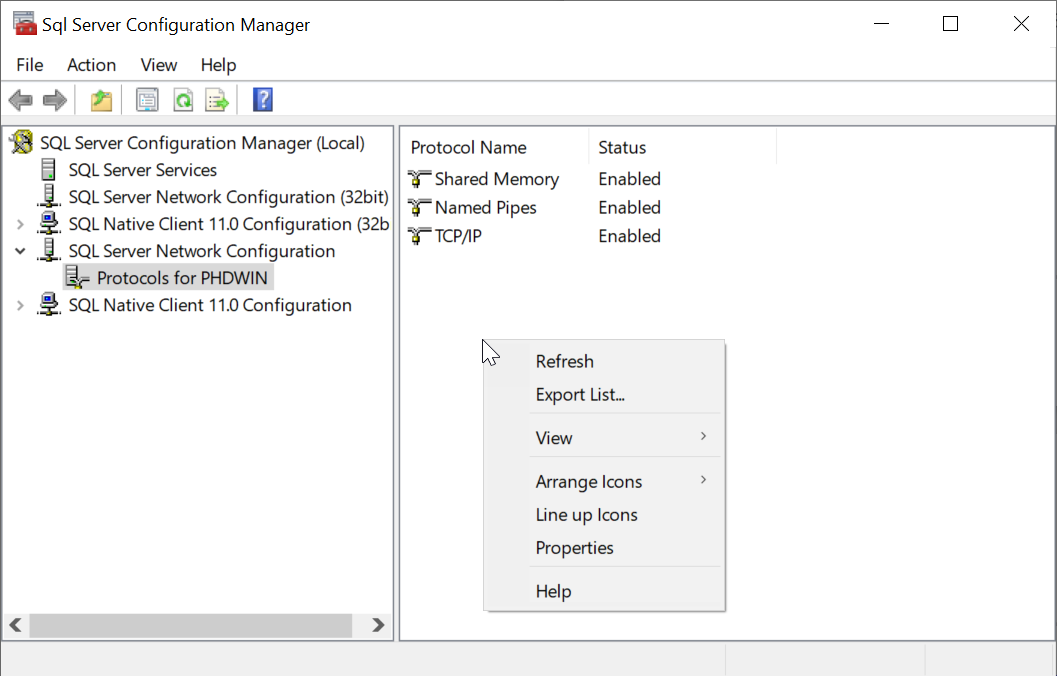
If you've installed SQL Server on a network server and you or other users will need to connect to it, TCP/IP and Named Pipes connections must be enabled.
1.Start SQL Server Configuration Manager you can search for this app in the Windows start menu. 2.In SQL Server Configuration Manager, in the console pane, expand SQL Server Network Configuration. 3.In the console pane, click Protocols for <instance_name>. a.In the details pane, right-click TCP/IP, and then click Enable. b.In the details pane, right-click Named Pipes, and then click Enable.
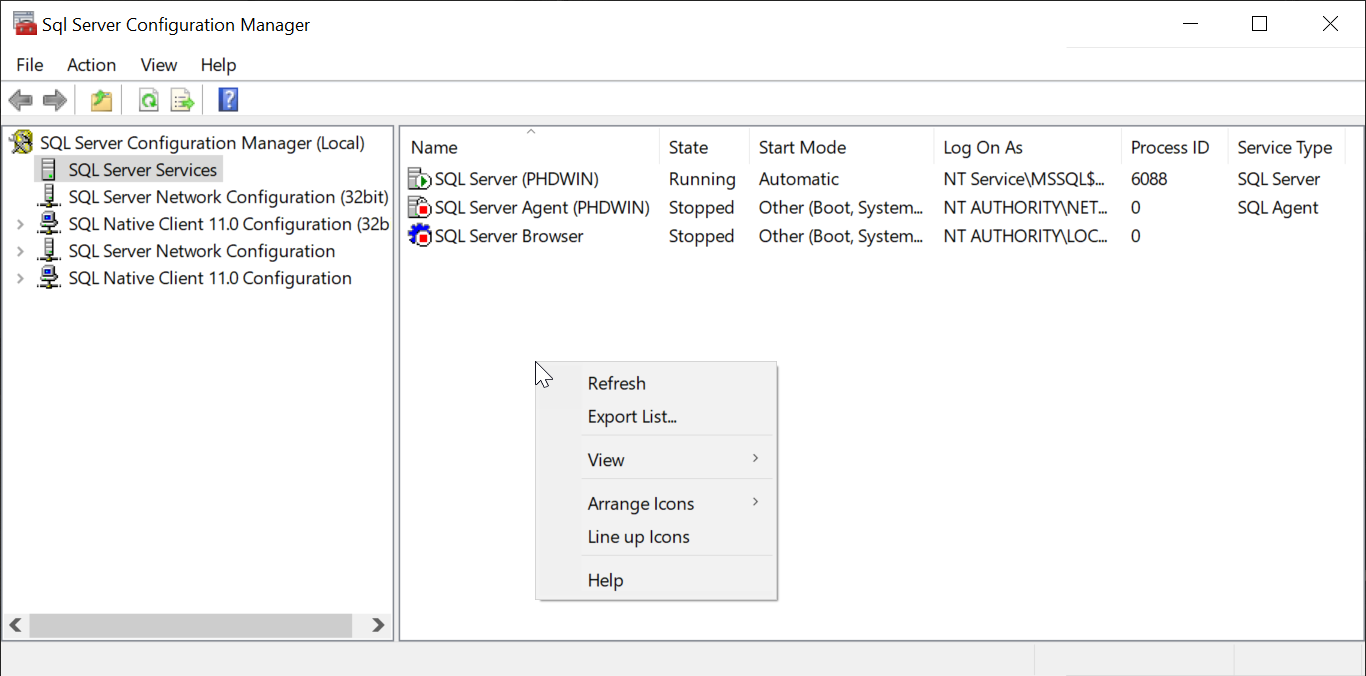
4.In the console pane, click SQL Server Services. a.In the details pane, right-click SQL Server (<instance_name>), and then click Restart, to stop and restart the SQL Server service to apply the changes.
|
Verify that SQL Server Browser is Running Automatically
During the install, you should have set the SQL Server Browser to start automatically. If you didn't, PHDwin will not be able to see the server as an available option when you try to log in. To verify that the service is running automatically: 1.Start SQL Server Configuration Manager - Click Start, point to All Programs, and click Microsoft SQL Server. Click Configuration Tools, and then click SQL Server Configuration Manager. 2.In SQL Server Configuration Manager, in the console pane, click on SQL Server Services. 3.In the details pane, look for SQL Server Browser. The Start Mode should be set to Automatic. If it is set to "Other" or "Disabled", right-click on SQL Server Browser and choose Properties. 4.In the Properties window, go to the Service tab and find the Start Mode. Change this to Automatic and click OK. 5.Right click on the SQL Server Browser and click Restart to apply the changes. |
Uninstalling SQL Server Instances
If you would like to remove or delete old/unwanted instances from SQL server express: 1.Go to www.microsoft.com. or click Uninstalling SQL Server Instances. 2.Follow the instructions provided by Microsoft and select the instance you want to remove.
|