Navigation: Multi-case Editing > Grid Editor >


The Grid Editor can be used to modify the shrinkage in a spreadsheet-like editor for more than one case at a time.
 To Open the Shrinkage Table in Grid Editor
1.Go to the list of Forms and double-click on Grid Editor if it is not already open. 2.Select the cases to edit by dragging and dropping them from the Case List into the right section of the Grid Editor window. Select multiple cases by using Click+Shift, Click+CTRL, or by dragging over a grouping of cases set up in the sort order. The number of cases selected is shown with a case count on the top right. To remove one or more cases, hover over the case and click the 3.Under Available Edit Tables, select Shrinkage. 4.Click Edit to open the Grid Editor table 5.Make the appropriate changes and click Save to save the data and exit the Grid Editor. |

Columns in the Shrinkage Table
These are the standard columns in the Shrinkage table. You can click on the icon on the top left •*Case ID - The ID Code ties each record to a case in PHDwin. New rows should be populated with the proper Case ID. This is a required field when adding new shrinkage records and tells the program which case the shrinkage or shrinkage adjustment will be applied to when the Grid Editor is closed. •Case Name - The Case Name is presented so that users are able to easily identify the case, even though the Case ID is the actual field used by the Grid Editor to link the new shrinkage data to a case. The case name is used for reference and is displayed so users can identify the case being edited. If a new shrinkage record is added, there is no need to populate the Case Name as this new information is not saved in this table •*Product - The product that the shrinkage is applied to. The product is a required field when adjusting or adding new Shrinkage lines. The product name has to match one of the available products in the Phase Configuration for the case and can be selected from the drop-down provided. •Units - the units for the shrinkage deck •Deck Type - The Deck Type will either be Shrinkage Percent 1, Shrinkage Add or Shrinkage Percent 2. That is the order that the shrinkage decks are applied if multiple decks are set up for the case. •Model - The name of a model that has already been created. New models cannot be created here. To hard-code a shrinkage, set it to Case Specific. The Model column is either say Case Specific or linked to a Model if there is one applied to the case. If a model is applied, it cannot be edited the Grid Editor, no changes to those values will be pulled back. •Sequence - Lists which segment of the deck the value is for. The Sequence column lists the order of the segments of a Shrinkage deck, if there are multiple segments to model a Shrinkage that changes over time. For a single segment Shrinkage deck, the value is 1. For multiple segment Shrinkage decks, the value is 1 for the first segment, 2 for the second segment, and so on. •Segment Value - Required - The value of the Shrinkage segment in the units listed. View the corresponding start date and length of the segment in the next two columns. This can be a positive or negative value. •*Shr. Date - Shrinkage Date. The date is only required for the first segment of the deck. It can be populated with a hard-coded or linked date when the shrinkage begins. The length of each segment is set with the # of Months in the next column. Linked dates have to be formatted specifically. Examples of these are in the next section of this topic. •*# of Months - Required - The number of months that the segment lasts. This must be populated for each segment of the deck. To continue until the economic limit, input ECL. For the last value of the segment, this value will automatically be converted to ECL to continue the segment until the economic limit.
*Required Fields when creating a new row |

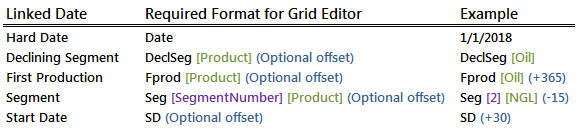
Note: In the latest builds of PHDwin V3 (from build 9), it is now much easier to use linked dates using the provided drop-down menu. This reduces the chances of error. If a Shrinkage deck or Shrinkage model changes over time, always begin the price on a hard date. However, if a flat Shrinkage is used, link it to some event on the case using Linked Dates. To use the Linked Date field in the Grid Editor, it must be formatted correctly. If not an error occurs and the changes to records with invalid linked dates will not be saved. Say a Shrinkage has been scheduled to begin at, or be linked to, First Production of Oil. When viewed in the Grid Editor, the Linked Date might look like this: Fprod [Oil]. When adding Shrinkage to a handful of cases, it is recommended to set up a sample using one of the cases on the Prices form in PHDwin before making changes to the rest of the cases in the Grid Editor. This makes the right formatting visible. These are the valid options for Shrinkage linked dates along with examples of how to enter each one in the Grid Editor:
Important notes about linked dates: •The inputs in brackets [ ] are required. •The input in parenthesis ( ) is optional - this is the offset. The (Offset) is a number of days and can be positive or negative. If no offset is entered, zero is assumed, implying no offset. •The offset for Start Date should always be positive. If a negative offset from the case start date is used, it will not report, because nothing is usually reported before the case start date. |