Navigation: Multi-case Editing > Grid Editor >


You can use the Grid Editor to modify existing or add new investments to your cases. Certain fields, like the date, have to be formatted properly in order for your changes to be saved correctly. When you're adding new investments, you also need to make sure to fill out the proper fields. All of the proper processes and formatting are explained below.
 To Open the Investments Table in Grid Editor
1.Go to the list of Forms and double-click on Grid Editor if it is not already open. 2.Select the cases to edit by dragging and dropping them from the Case List into the right section of the Grid Editor window. Select multiple cases by using Click+Shift, Click+CTRL, or by dragging over a grouping of cases set up in the sort order. The number of cases selected is shown with a case count on the top right. To remove one or more cases, hover over the case and click the 3.Under Available Edit Tables, select Investments. 4.Click Edit to open the Grid Editor table 5.Make the appropriate changes and click Save to save the data and exit the Grid Editor. |

Columns in the Investments Table
These are the standard columns in the Investments table. You can click on the icon on the top left •*Case ID -The ID Code ties each record to a case in PHDwin. New rows should be populated with the proper Case ID. This is a required field when adding new investment records and tells the program which case the investment or investment adjustment will be applied to when the Grid Editor is closed. •Case Name - The Case Name is presented so that users are able to easily identify the case, even though the Case ID is the actual field used by the Grid Editor to link the new investment data to a case. The case name is used for reference and is displayed so users can identify the case being edited. If a new investment record is added, there is no need to populate the Case Name as this new information is not saved in this table. •*Investment Category - The name of the investment category used for depreciation purposes. The category selected must be one of the available categories set up in the Database Settings. The investment category controls how the investment is depreciated if that is a part of the fiscal model. This is a required field when adding new investments. •*Investment Name - A short description of the investment. This can be anything but users are encouraged to make it descriptive. This is a required field when adding new investments. •*Inv Date - The date at which the investment occurs. This can be a linked date (discussed below) with an offset or a hard-coded date. This is a required field when adding new investments. •Tangible Amount - The tangible portion of the investment in thousands of currency units. This field is not required to add new investments, but it is recommended to enter a value in one of the amount fields. •Intangible Amount - The intangible portion of the investment in thousands of currency units. This field is not required to add new investments, but it is recommended to enter a value in one of the amount fields. •Enable custom interest - This should be set to TRUE or FALSE. If set to TRUE, it means custom interest has been enabled for this investment. The interest can be entered in the next field. The investment will no longer be netted down using the working interest set up in the ownership form for the case, it will use the custom interest set in the next field. If it set to FALSE, the investment will be netted down using the working interest. •Custom Interest - If the prior field, Enable custom interest, is set to TRUE, enter a custom interest for the investment here. The investment will no longer be netted down using the working interest on the case, it will use the custom interest entered here. Accepted range is between 0.0 and 1.0. •Investment Multiplier - This is an optional field that can be used to multiply the investment (base value) by a certain factor, without changing the amounts. A value of 0.0 is equal to 1.0 and will not affect the investment amount. Enter a value like 0.8 to get 80% of the investment reported, or 1.2 to have the investment be 120% of the original value. There is no maximum value for the multiplier. •In Service - The number of days from the investment date until the asset is in service or being used. If an evaluation and fiscal models include depreciation, enter the number of days between the investment date and the date it will go in service and should begin depreciating.
*Required fields |

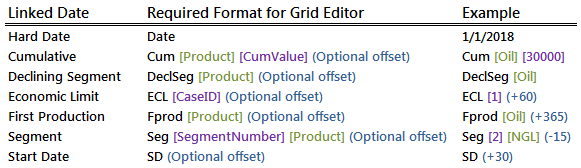
Note: In the latest builds of PHDwin V3 (from build 9), it is now much easier to use linked dates using the provided drop-down menu. This reduces the chances of error. To use the Linked Date field in the Grid Editor, it must be formatted correctly. If not an error occurs and the changes to records with invalid linked dates will not be saved. Say a drilling investment has been scheduled to occur, or be linked to, thirty days before the first segment of the case (segments refer to your forecast segments on the graph). When viewed in the Grid Editor, the Linked Date might look like this: Seg [1] [-30]. When adding an investment to a handful of cases, it is recommended to set up a sample using one of the cases on the Investment form in PHDwin before making changes to the rest of the cases in the Grid Editor. This makes the right formatting visible. These are the valid options for linked dates along with examples of how to enter each one in the Grid Editor:
Important notes: •The inputs in brackets [ ] are required. •The input in parenthesis ( ) is optional - this will always be the offset. The (Offset) is a number of days and can be positive or negative. If no offset is entered or no value there, there is no offset (zero offset is assumed). •The offset for Start Date should always be positive. If a negative offset from the case start date is used, it will not report. •The [CaseID] input on the Economic limit can be linked to the current case's economic limit by inputting the Case ID in the first column. Link it to the economic limit of another case by entering the Case ID of that other case (which can be looked up if the case is open in the Grid Editor or it should be known beforehand). •The units for the [Cum Value] are always going to be the base units for the product that selected. |