Navigation: Graphs >


The Notes tab of the Graph Properties window allows annotations to be added directly on the graph that can be associated with either a specific product or the graph as a whole. They can be used to make a note about production, an event that happened at a certain time, or just for printing and presentation purposes.

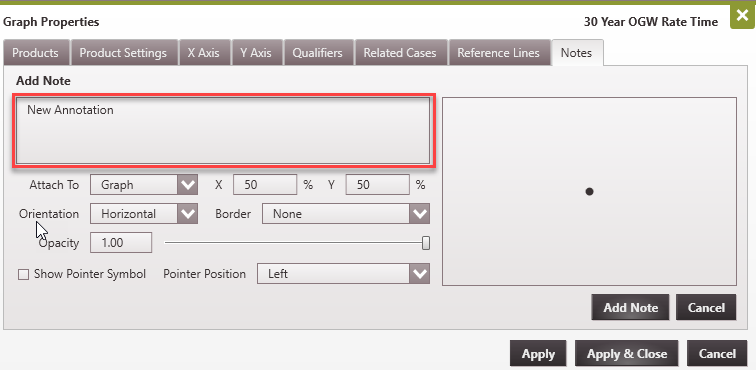
Adding a new note 1.Open the Graph Properties Window and click on the Notes Tab. 2.Click on the
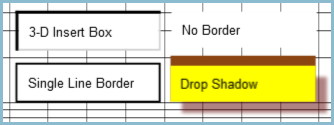
3.Choose whether to attach the note to the Graph or a specific product (Oil, Gas, or Water) 4.If the note is attached to the graph it will display in black. 5.If it attached to a specific product, it will be printed in the same color as the product it is attached to. 6.Specify the position on the graph to display the note. If you choose to attach the note to the graph, the X and Y positions would be in percentages, representative of how far along each axis the note is displayed. If you chose to attach the note to a product, the X and Y Positions would be coordinate points on the graph with units of the specific product. 7.Select the Orientation of the note: horizontal or vertical. 8.Select the border style for the note. The options are Single Line border, 3D Inset Box, or Drop Shadow Box.
9.Define the Opacity for the text and/or outline of the note. A value of 1.00 = 100%. 10.Enter the text for the note in the provided text box (New Annotation). 11.Add a Pointer Symbol (optional) - this draws a line to the specified coordinate on the graph. 12.Hit Apply then Apply & Close on the Graph Properties Window to effect the changes.
|

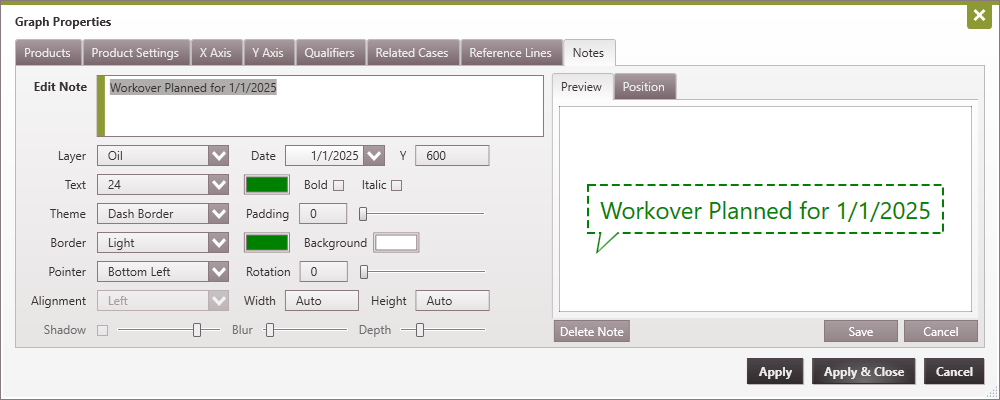
Double-click on the graph note and click the Delete Note. |