Navigation: Database Settings >


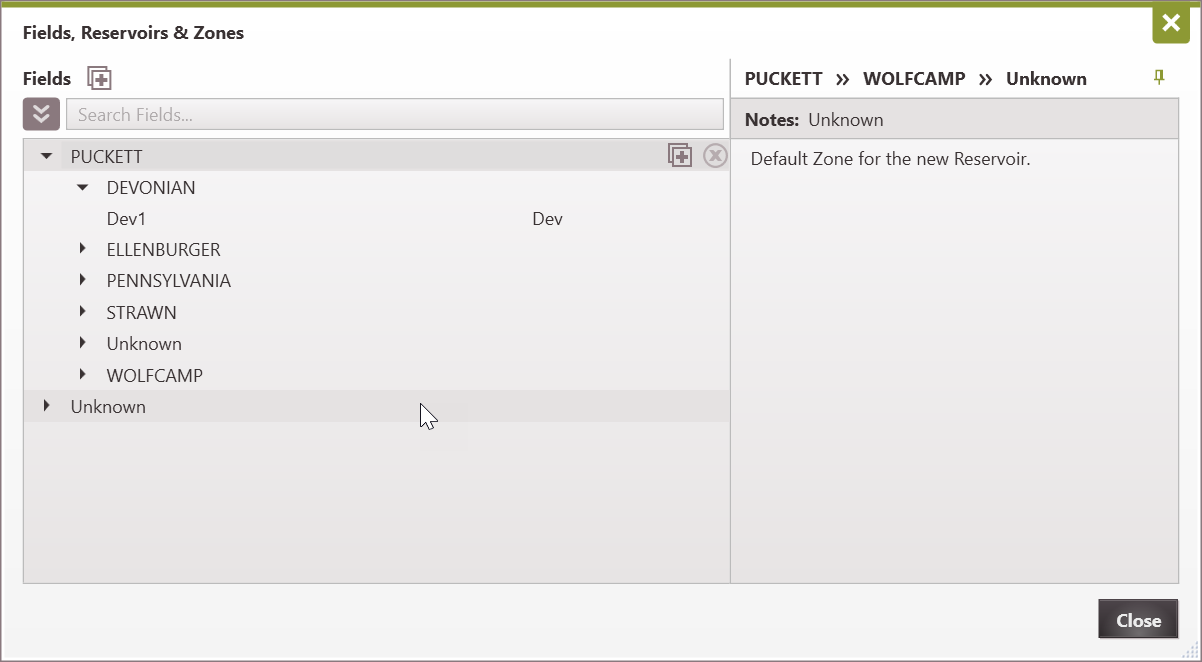
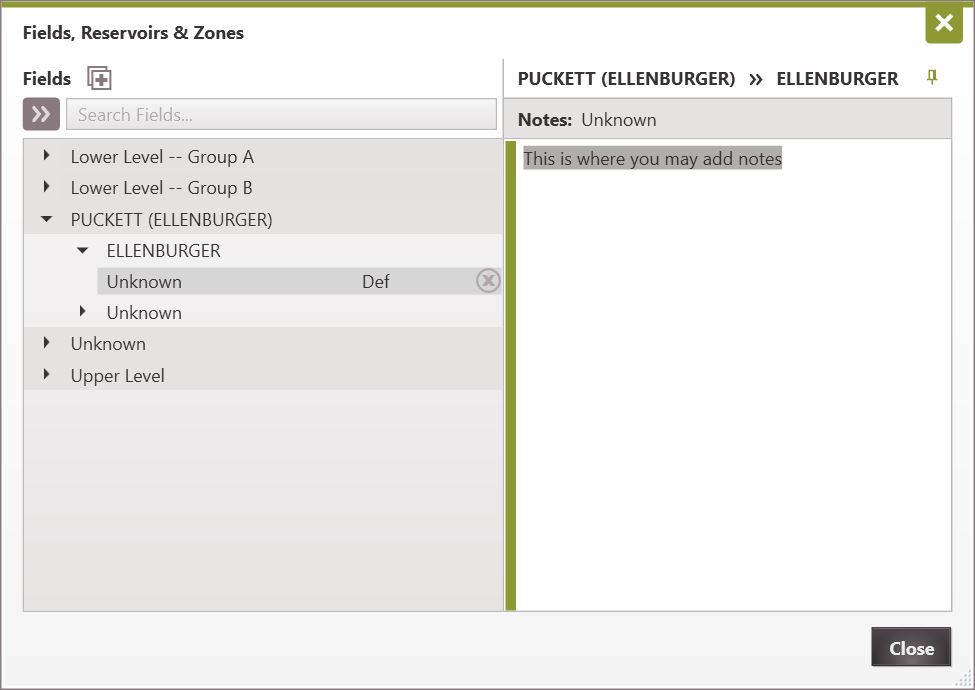
This Database Setting allows users to customize the list of available Fields, Reservoirs, and Zones that they can choose from on the General Info and Test Data forms. Fields, Reservoirs, and Zones work together in the program in a hierarchical manner- when a field is selected, only the reservoirs that lies within the chosen field can be selected, and once a reservoir is selected, only the zones within the chosen reservoir can be selected. This ensures that all cases will use a consistent set of titles.

Go to the Database Settings Ribbon and click on Fields, Reservoirs & Zones and click Edit to enter Edit Mode.
To Add a New Field, Reservoir or Zone For a new Field - click the For a new Reservoir - click the For a new Zone - click the To Add a Note About a Field, Reservoir or Zone Click on the name of the Fields, Reservoirs & Zones and enter the note in the box to the right labeled Notes.
To Delete a Field, Reservoir or Zone Hover over the name and hit the |